This workflow applies when the instrument exists in the model and needs to be updated from the DDP.
1.Load the pipeline where you want to insert the instrument from the retrieved DDP into the S3D workspace.
2. Expand the SmartPlant menu from the top ribbon and select Design Basis Viewer.
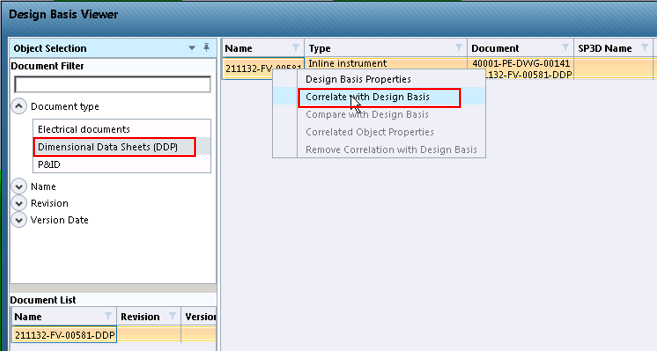
3. In the Design Basis Viewer expand the Document type dropdown menu in the left-side pane and select the Dimensional Data Sheets (DDP) option.
4. Right-click the instrument shown under the Name column and select Correlate with Design Basis.
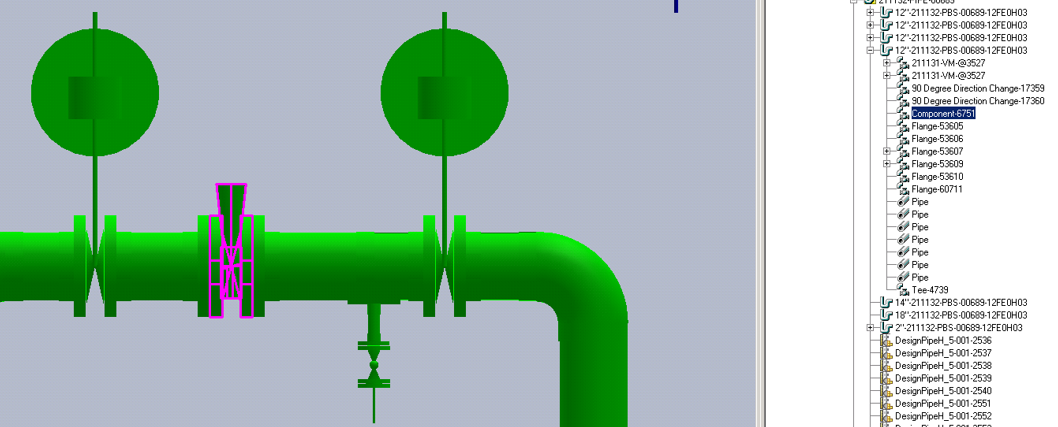
5. Upon the prompt to select the S3D object to be correlated, select the valve along the leg feature.
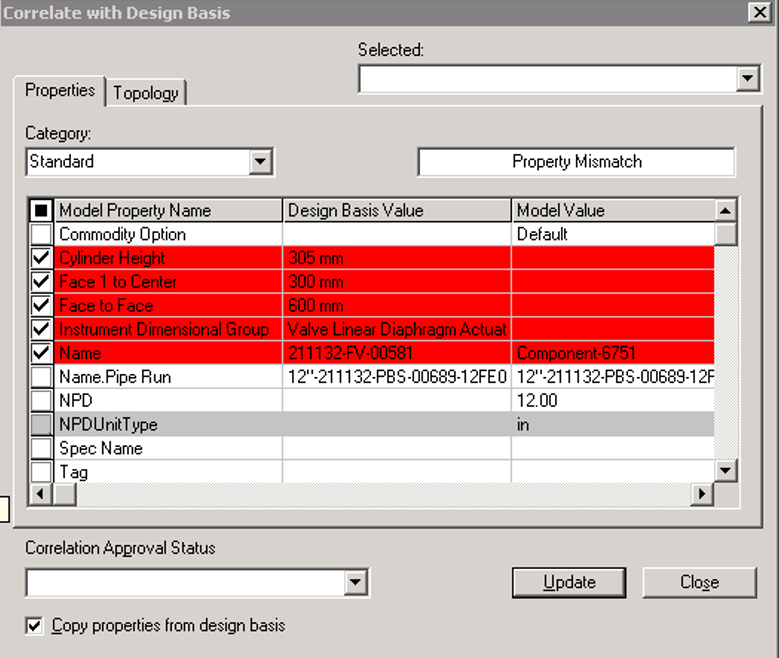
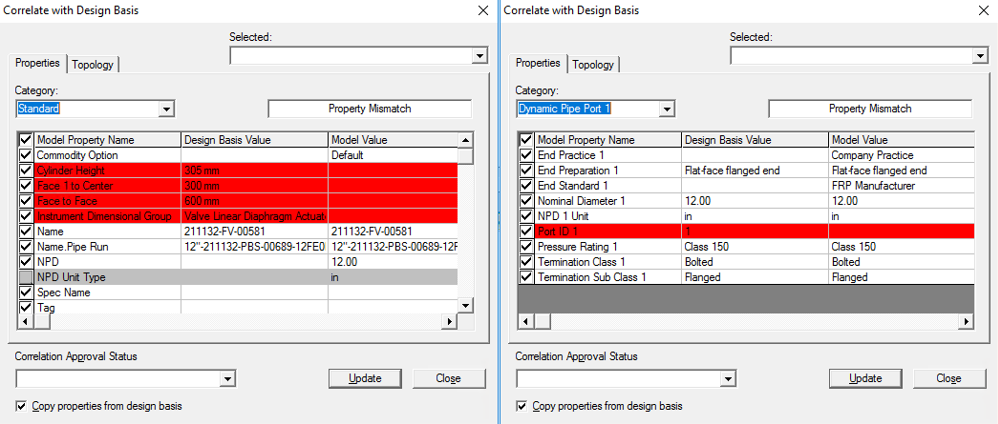
Result: This opens the CorrelatewithDesign Basis dialogue window.
6. Review the dimensional and port data, ensuring to check the checkbox Copy properties from design basis.
7. Click Update to insert the component based on the dimensional data group defined for the tag in DDP.
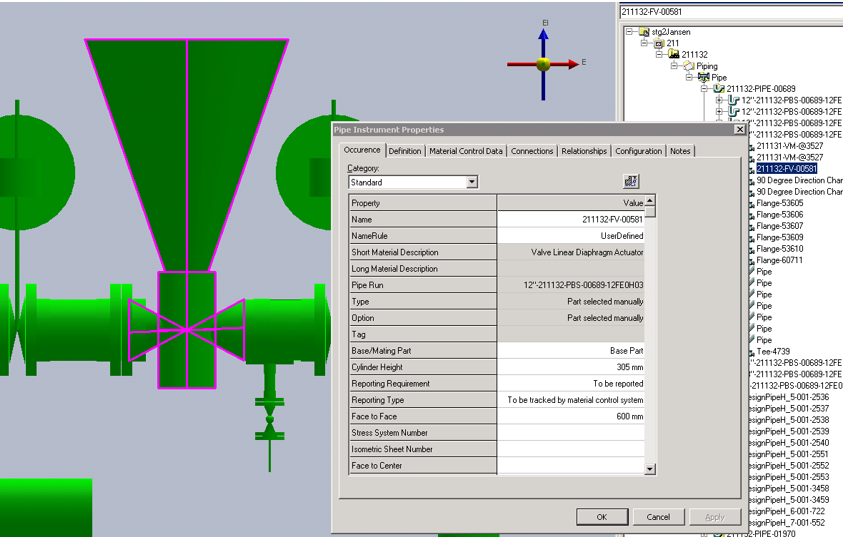
8. Once the instrument is successfully updated, open the Properties window of the base part and confirm that the instrument dimension data (face to face) now reflects the information in DDP.
9. Select the valve feature.
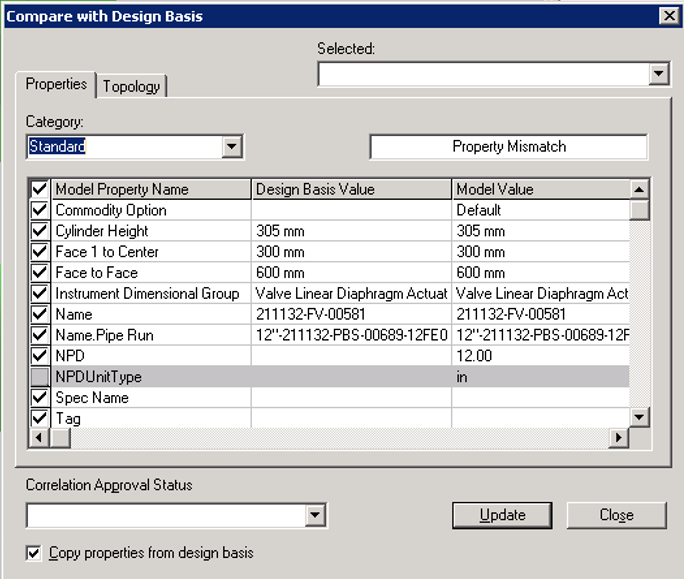
10. Expand the SmartPlant menu from the top ribbon and select Compare with Design Basis.
11. Verify that the data between the design basis and the model values is consistent.
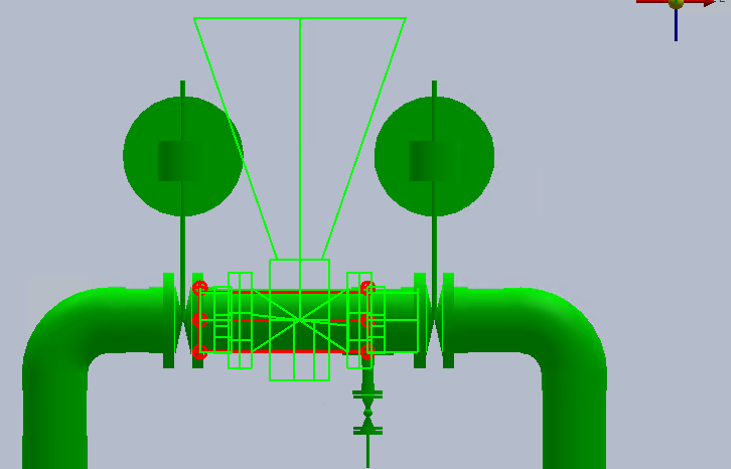
Note: The end preparation of the inserted instrument also comes from DDP if its published, so in a similar case below you can see 150LB/FF end preparation has been published and system automatically placed the instrument with those ends.