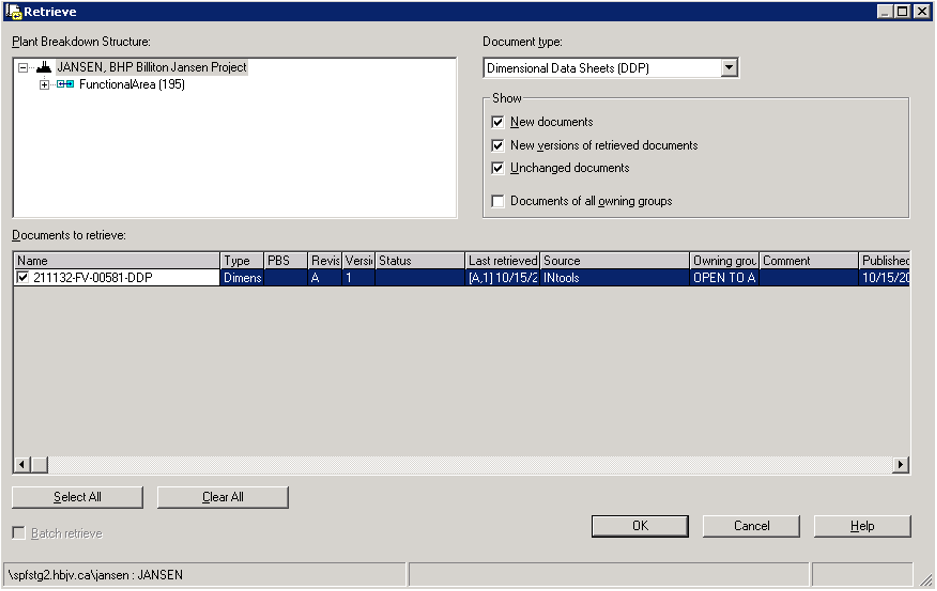
1. Set active permission group to MIS_Retrieve then expand the SmartPlant menu at the top ribbon and click Retrieve... If you haven't logged in, you need to enter your credentials at the prompt.
Result: The Retrieve dialogue window is displayed (the window may take a few minutes to load).
2. Select the options under the Show section and check the document to be retrieved as displayed in the following figure
Result: A dialogue window is displayed, confirming the successful retrieval of the document.
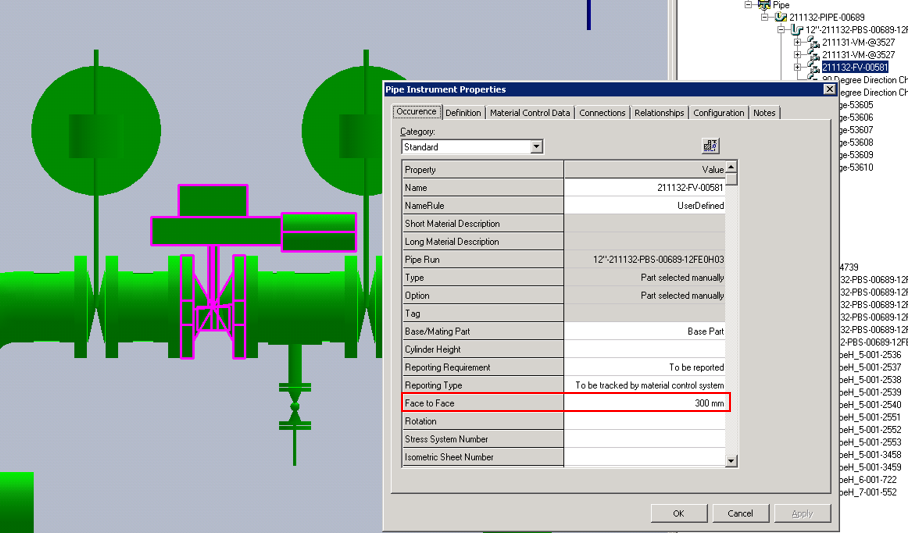
As shown in the following figure, the Face-to-Face value is 300 mm, and the next steps include updating the instrument from DDP and checking the updated dimensional data.
The specific steps vary based on three (3) possible scenarios:
Workflow 1: The instrument does not exist in the model and the DDP is not correlated to any P&ID
Workflow 2: The instrument does not exist in the model, and both P&ID and the DDP correlated to it have been retrieved in the S3D
Workflow 3: The instrument exists in the model and needs to be updated from the DDP.
In all three scenarios the instrument is placed based on the Instrument Dimension Group under which it is published. In S3D, the Instrument Dimension Group maps to an instrument class or a commodity code (through RteInstrumentDimGroup) which dictates which type of instrument is placed.
Note: If the dimensional data or port data is missing or invalid in DDP, S3D cannot place the instrument.
The contents of Retrieve Dimension Data Sheet (DDP)