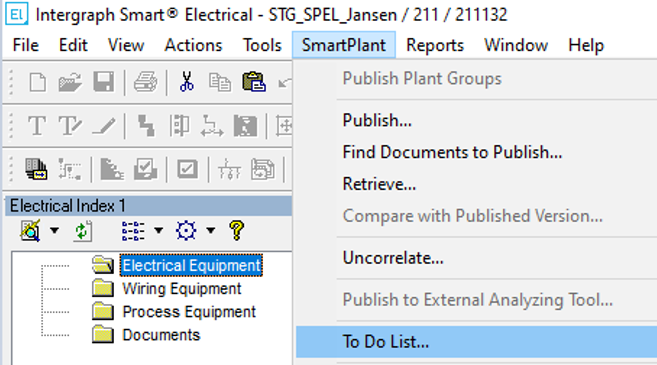
1. Expand the SmartPlant menu on the top ribbon and select Retrieve...
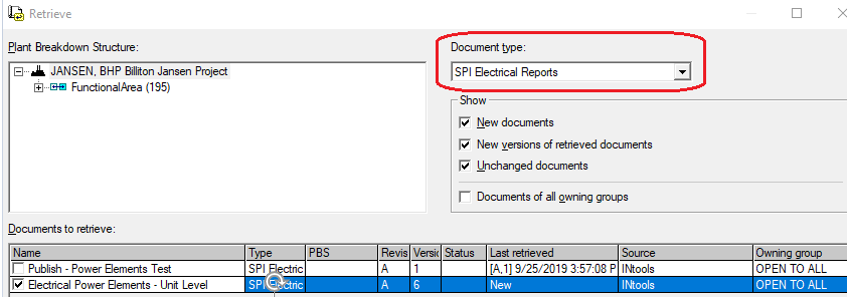
2. Expand the Document type: dropdown menu and select SPI Electrical Reports.
3. Filter or sort the documents you want to display and click OK.
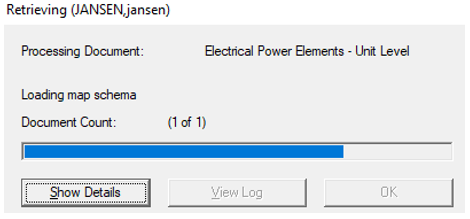
Result: The retrieval progress bar is displayed followed by a message of process completion.
4. Expand the SmartPlant menu on the top ribbon and select To Do List...
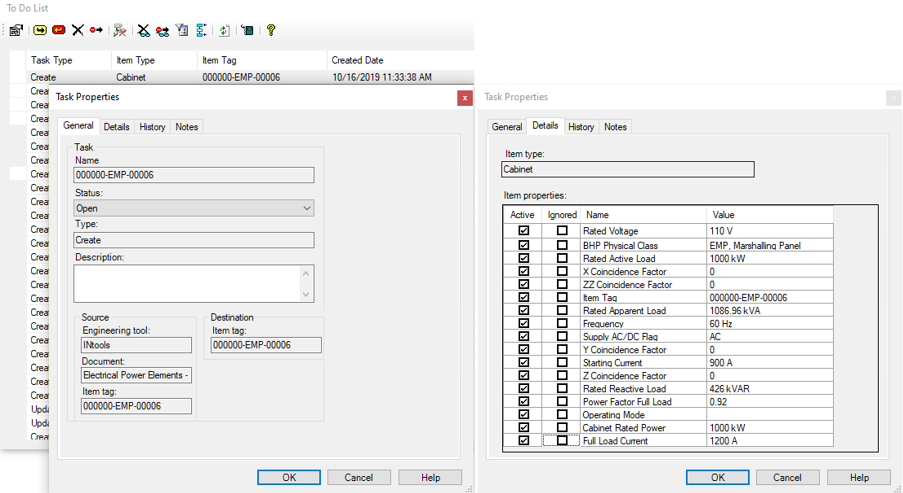
5. Find the target document in the To Do List.
SPI always publishes both instruments and panels that require power regardless whether EDE [Actions] View only contains Panels or Filters.
If instruments don't get powered in SPEL, use the Ignore task to make sure these sets of instruments are skipped for all subsequent retrieve operations.
In Properties, check the values coming from SP&ID.
Note: All panels retrieved from SP&ID fall under the SPEL Electrical Equipment Sub Class “Cabinet” regardless of which panel type they are classified under in SPI.


 Ignore task to make sure these sets of instruments are skipped for all subsequent retrieve operations.