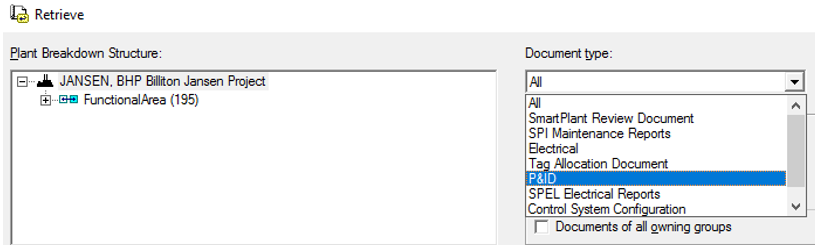
1. Expand the SmartPlant menu on the top ribbon and select Retrieve...
2. Expand the Document type: dropdown menu and select P&ID.
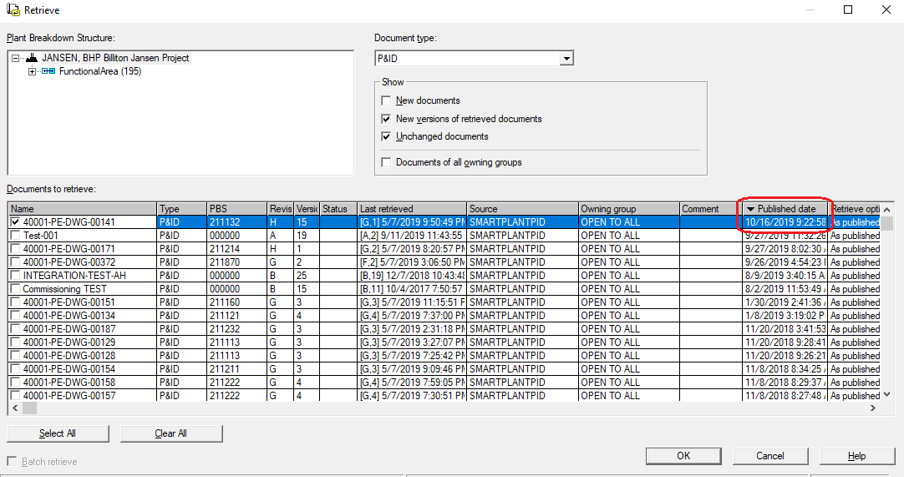
3. Filter or sort the documents you want to display and click OK. In this example, the P&IDs are sorted by publishing date.
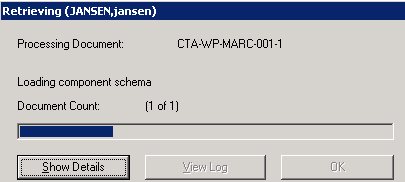
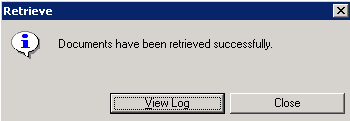
Result: The retrieval progress bar is displayed followed by a message of process completion.
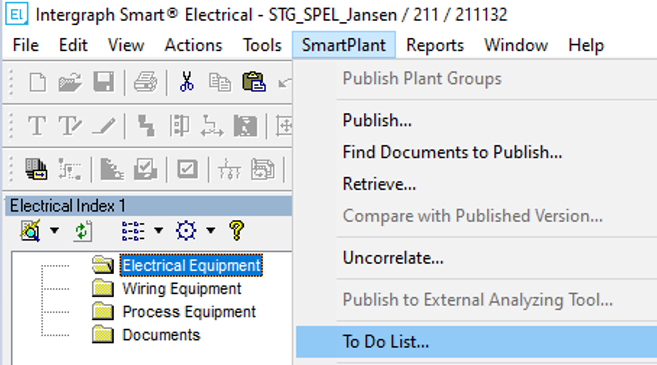
4. Expand the SmartPlant menu on the top ribbon and select To Do List...
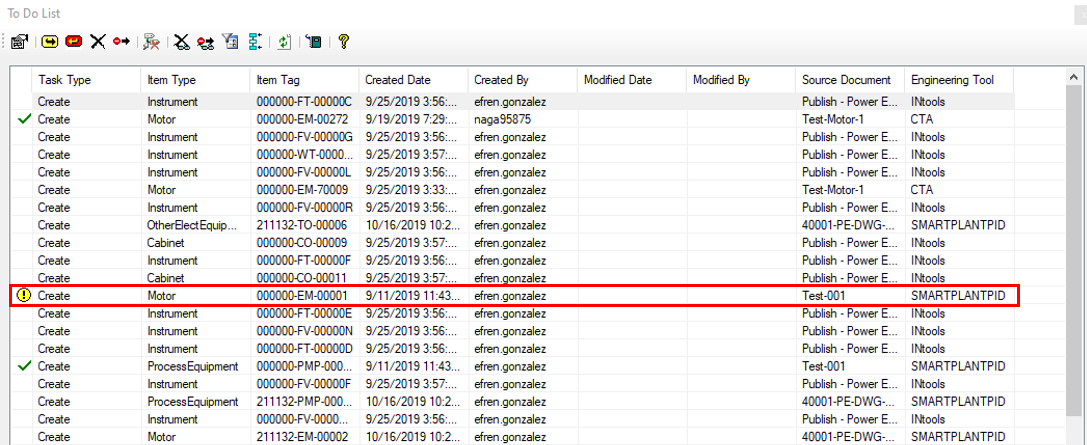
5. Click the Create Date column to sort items.
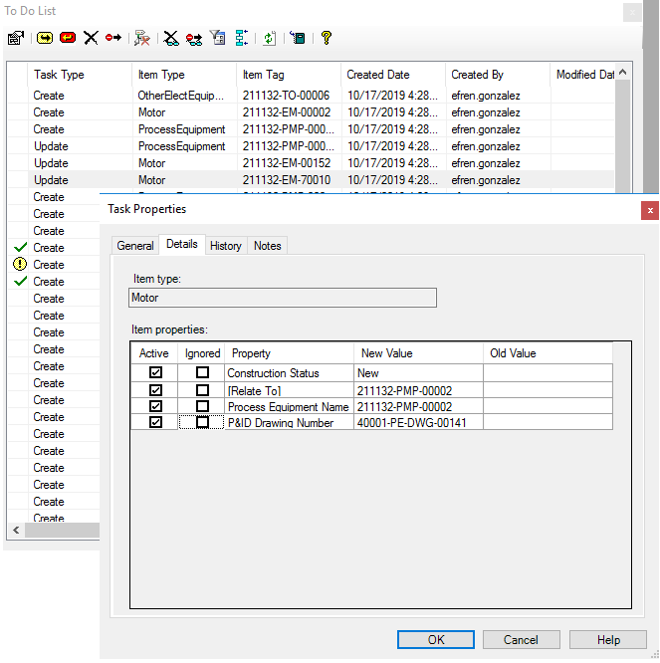
5. Double-click the task to open the Task Properties (or select it and click the Properties icon) to see its associated values from SP&ID.
In this example, motor 211132-EM-00002 does not bring the Rated Power and Rated Voltage from SP P&ID. These values should be retrieved from the mechanical equipment authoring tool which is CTA.
The work process for mechanical equipment is as follows:
Create in CTA with data set owned by the Mechanical Engineering discipline.
Retrieve in SP&ID from CTA
Associate the process equipment in SP&ID (for example, motor)
Retrieve in SPEL from CTA
Retrieve in SPEL from SP P&ID so the process equipment gets associated and created in SPEL.
For this motor below the procedure explained above was followed.
The motor was retrieved from CTA with the properties Motor Rated Power and Rated Voltage.
When the P&ID is retrieved in SPEL, the motor is updated with the associated process equipment.
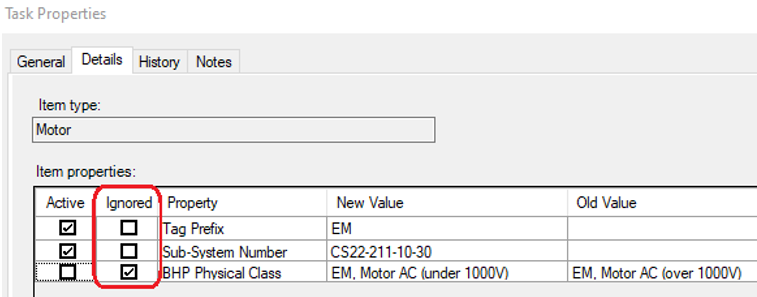
Note: You can ignore tasks even at property level.


 .
.