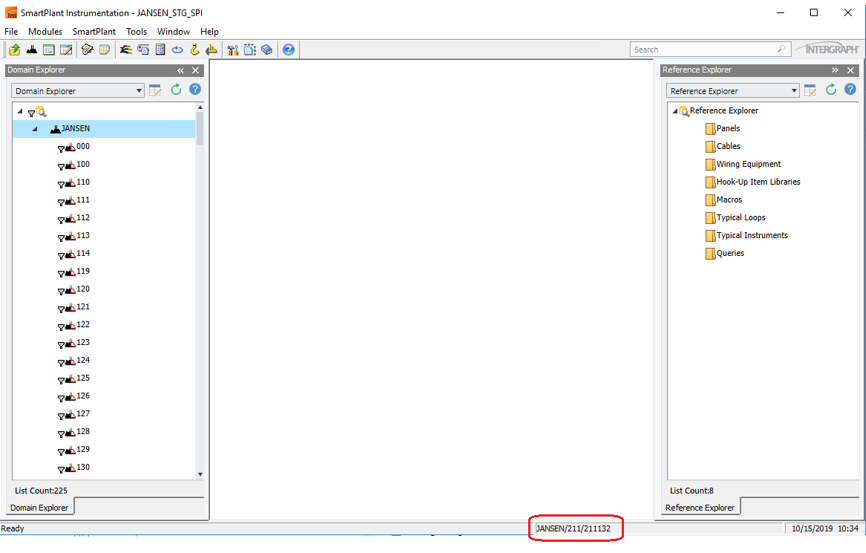
Before starting the retrieval process, note that the current connected unit is displayed at the bottom right side of the SPI window.
Once connected to the desired unit, start the retrieval process as follows:
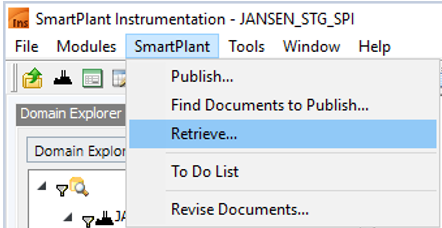
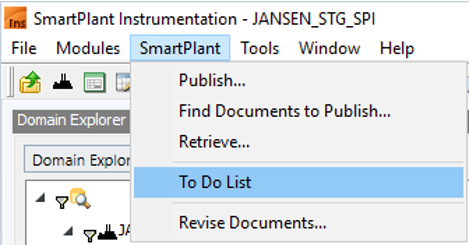
1. Expand the SmartPlant menu on the top ribbon and select Retrieve...
Note: If you haven't logged into SPF yet, you will be prompted to enter your credentials.
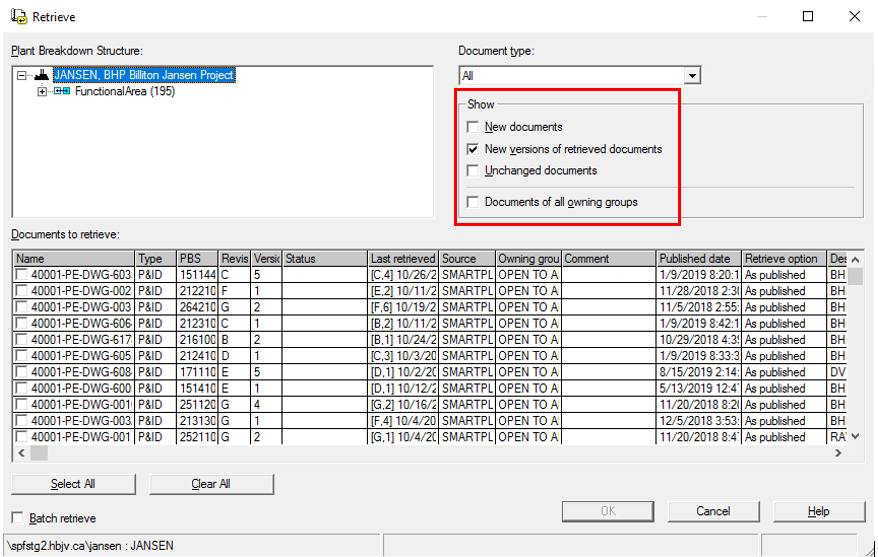
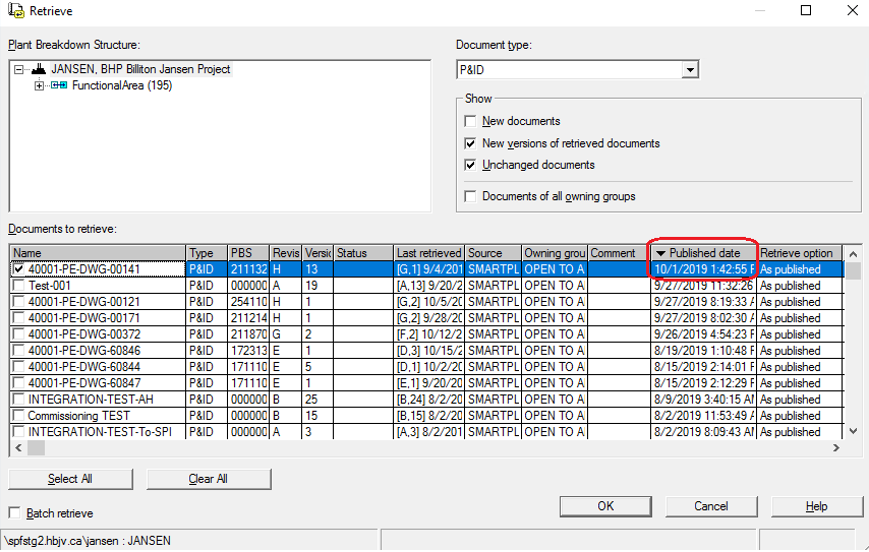
Result: The Retrieve dialogue box opens.
The Show section allows you to select which documents will be displayed in the list:
New documents: Checking this box results in a list of only new documents that have not yet been retrieved.
New versions of retrieved documents: This option will result in displaying only the documents that have new versions published since their last retrieval.
Unchanged documents: Displays documents that have not changed from the previous retrieve.
Documents of all owning groups: Displays documents associated with all owning groups. If an owning group is not configured to the user, the documents associated with it are not available and cannot be retrieved.
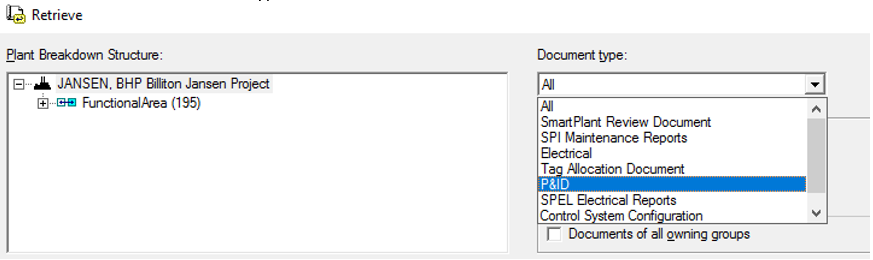
2. Select P&ID under Document Type:
Click a column header to sort the items in ascending or descending order.
To filter a column, right-click the column header, point to Filter, and click the type of information you want to apply as a filter.
To reorder columns, right-click on the column header, point to Manage columns and then select one of these options:
Reorder to move the column positions up or down.
Reset to apply the default settings.
In the example shown here, the P&IDs are sorted by publishing date.
3. Click OK to start retrieving.
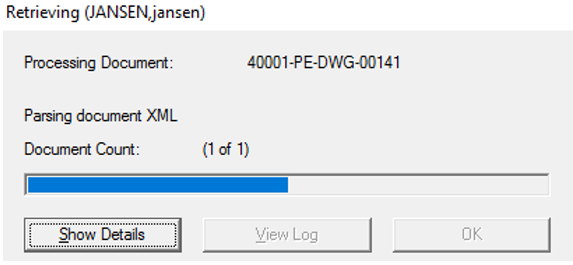
Result: The retrieval progress bar is displayed followed by a message of process completion.
Result: A confirmation message is displayed.
4. Once the P&ID has been retrieved, expand the SmartPlant menu from the top ribbon and select To Do List...