There are two ways to publish a PID drawing:
-
From within the SmartPlant P&ID application. This method is not recommended as it locks the drawing after it is opened.
-
From within the SmartPlant P&ID Drawing Manager. This is the recommended method since it does not impact anyone currently working on the drawing, and is described below.
From the P&ID Drawing Manager, you can publish one, or multiple P&ID drawings at once, as the process is the same.
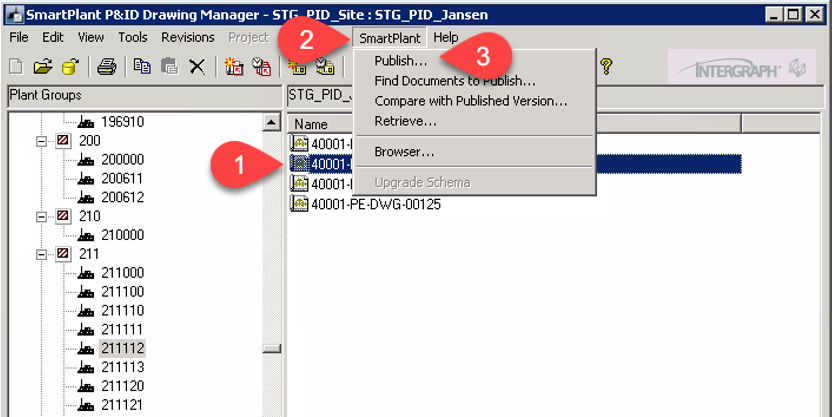
1. From the SmartPlant P&ID Drawing Manager, select one or more drawings to publish.
2. Expand the SmartPlant tab from the top ribbon
3. Select Publish...
Note: If you haven’t logged in SPF, you will be prompted to enter your credentials.
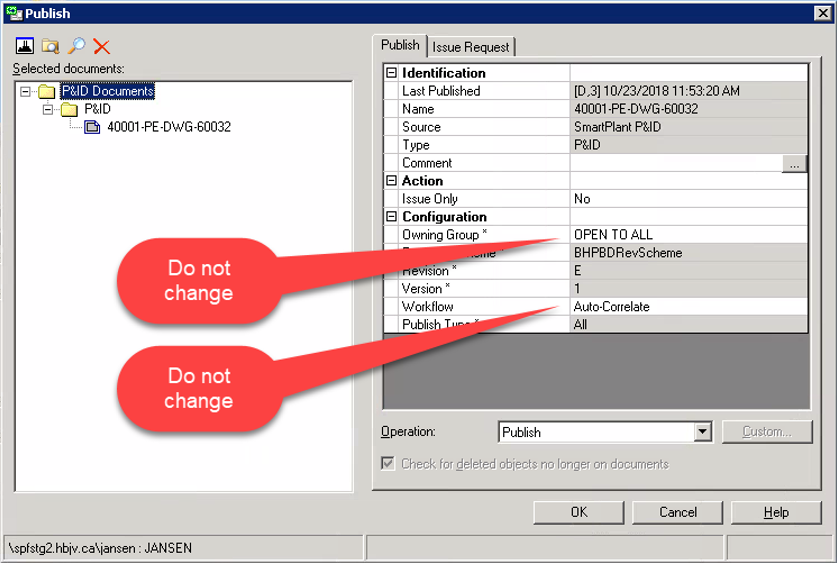
If a drawing has already been published the Publish window opens and the new publishing process starts immeditely. In the Publish tab, do not change the highlighted prepopulated fields.
When publishing multiple drawings at once, they will be listed in the left-side pane and you can verify their revisions and versions.
4. Click OK to publish.
Important: Each publishing attempt has a unique version. For example, each time you publish that same document, the tool will add a new version. This is not a revision, but a log of the number of publishing attempts made. This enables you to see both the successful and the failed loads of that drawing in SPF.
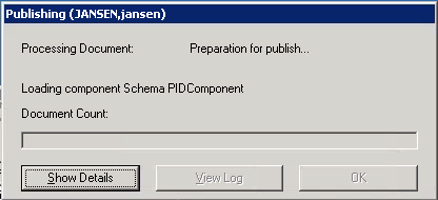
A series of progress screens appears while the tool publishes the data to SPF. This may take several minutes.
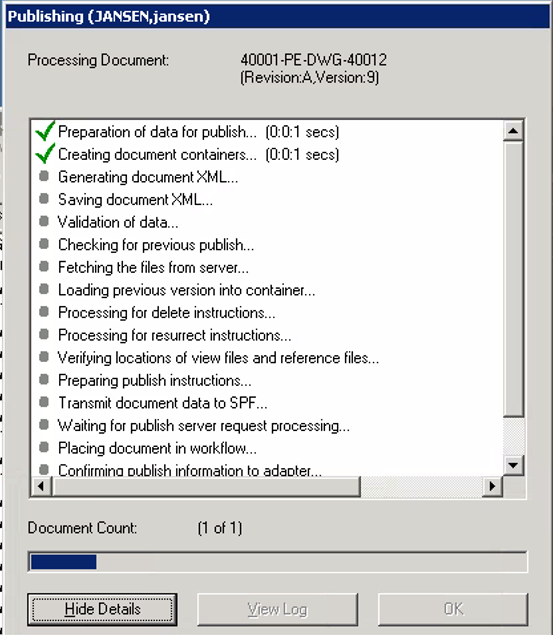
5. Click the Show Details button to see details of the publishing operation:
Result: The Publishing window displays the publishing details.
Once the P&ID is published, a confirmation message appears.
Successful publishing means only that SPF successfully received the information, but you still have to verify that the publishing was completed without errors.
You can do this by logging into SPF viewing the XML files.