Publish a 3-D Model Drawing
The updated drawing is ready to be published:
1. Before publishing, right-click the document and click Properties to bring up properties dialog and make sure Allow Publish option is set to "Yes".
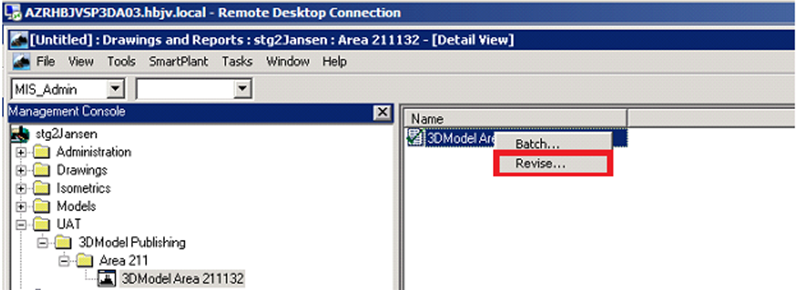
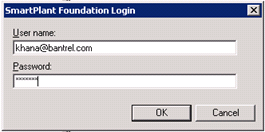
2. Document must be revised before it can be published. Right-click on the drawing and click Revise … . This will bring up the Revision dialog after prompting for SPF credentials.
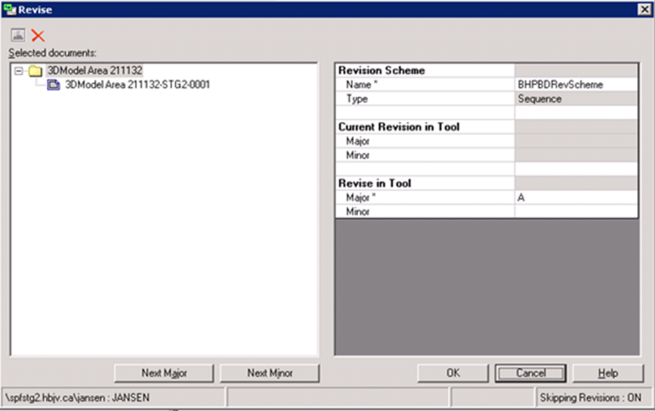
3. Click the Next Major button to assign a revision to the model. As this drawing is revised for the first time, revision A is assigned.
4. Click OK.
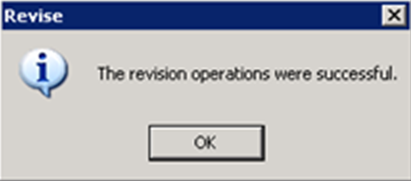
Result: A pop-up confirmation of a successful revisions operation appears. The document is now ready to be published.
Note: When a document is revised, the document status becomes outdated, showing a red "X" on the file icon.
5. Right-click the document and expand the Publish menu
6. Publish or Update and Publish if you want to update the document again before publishing.
7. Enter your SPF credentials in the pop-up window. Click OK.
Note: If you use the Update and Publish option, then it will take a while before the publish dialog shows up since S3D will be running the update drawing process first.
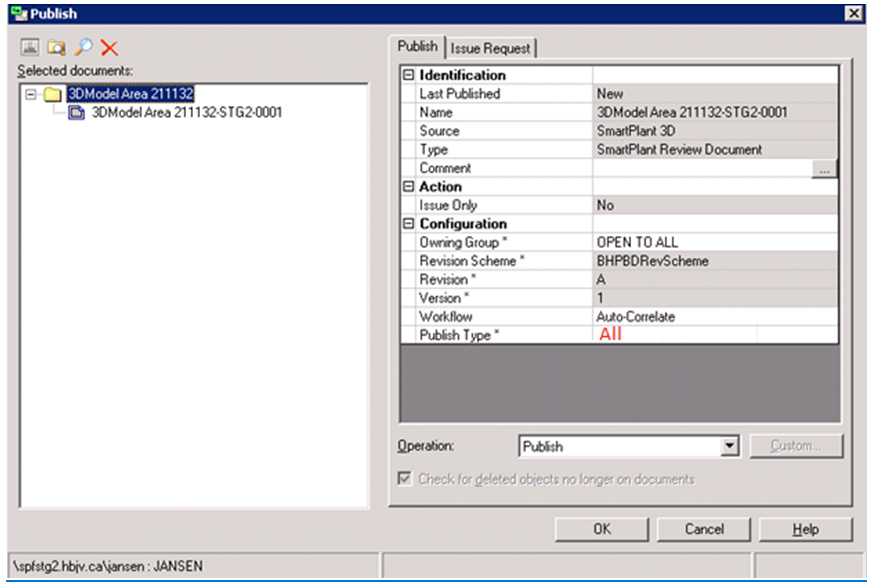
Result: The Publish window will open.
8. Make sure the settings under the Publish tab are set as shown in Figure XX.
Click OK.
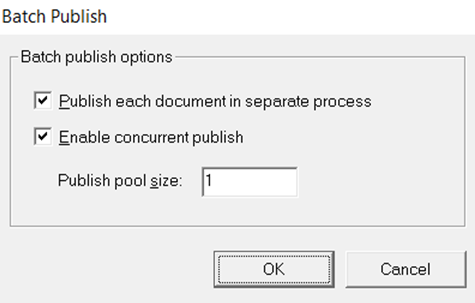
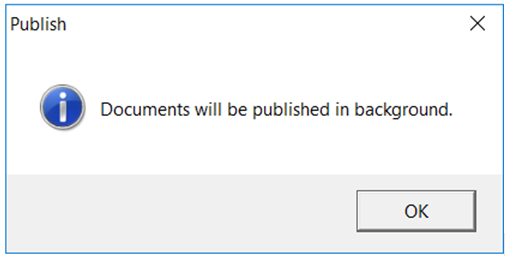
When using background publish option following dialogs will pop up. Accept the default values and click OK to start the publishing process in the background. You can continue working in S3D while the document publishes in the background.
Note: With the Background Publish operation, you will not get a notification for the completion of process, so you must check the document publish status in SPF web or desktop client.
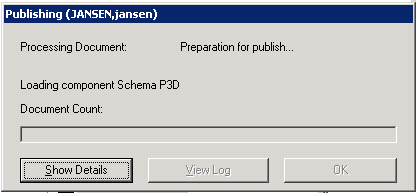
If you are using default Publish operation, then following publishing progress dialog will show up.
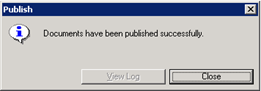
Result: The SPF publishing progress window appears, and, upon completion, a confirmation message is displayed.
Note: Publishing may take several minutes .