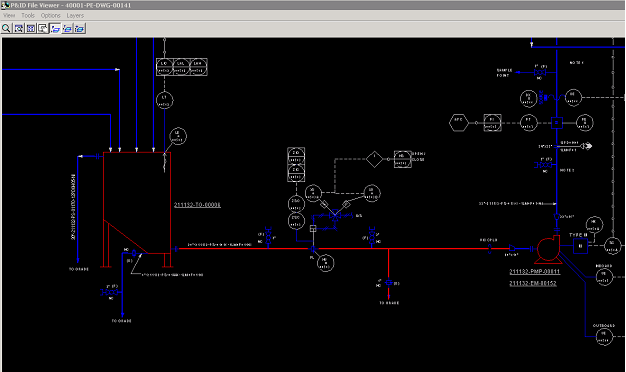
The following figure shows the P&ID of the correlated content in red, which means it was correlated with property mismatch. The reason for the mismatch is that the property data was not copied from the design basis.
This can be corrected through manual correlation.
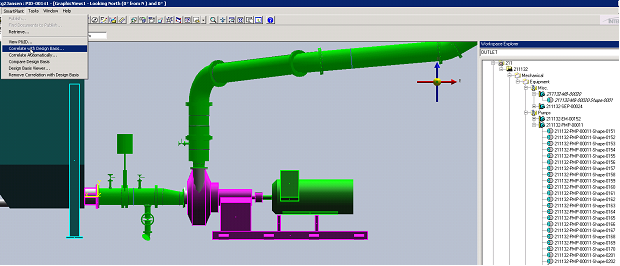
The first step is manual correlation of the discharge nozzle of the tank.
1. Make sure the select type is set to Pipe Nozzle or ALL
2. Select the discharge nozzle on 211132-TO-00006 as shown in Figure XX
3. Under SmartPlant menu from the top ribbon, select Correlate with Design Basis.
Result: The system will prompt you to select the related object from the P&ID drawing.
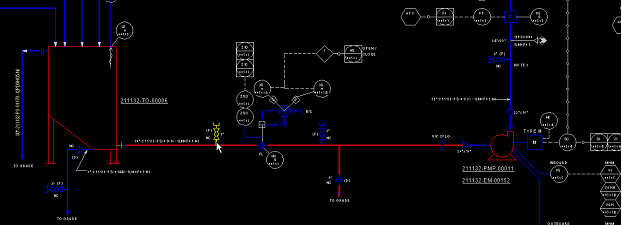
4. Open the P&ID viewer and select the discharge nozzle.
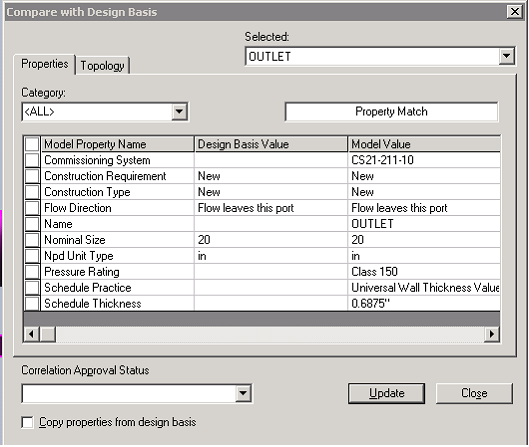
Result: The Compare with Design Basis dialogue opens, showing the difference in property data between the S3D model and Design Basis.
5. Check the option Copy properties from design basis.
6. Select the properties for which you want to update the data in S3D model
7. Click Update.
Repeat steps 1 through 7 for all non-correlated objects, including nozzles, pipe runs, and inline components to manually correlate them with Design Basis.