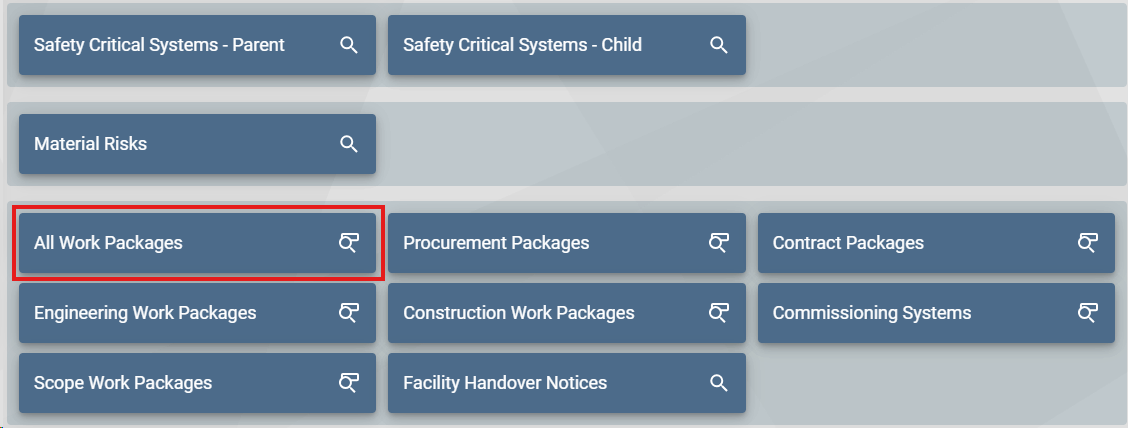
Select 'Work Packages' from the Home page, then select 'ALL Work Packages' to initiate the search
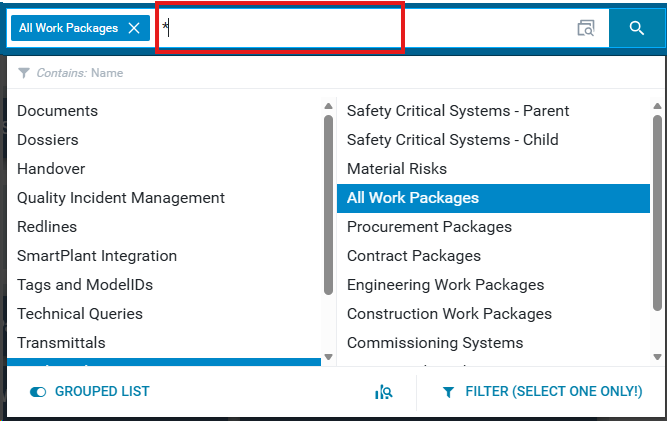
Input the Work Package name, include an astrix at the beginning and end if the name isn't complete, or search with only an astrix for search all.
Result:
List of searched Work Packages
Show Package Documents
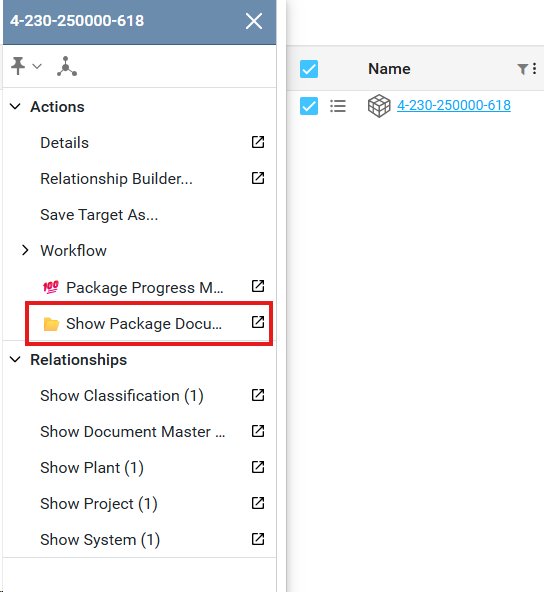
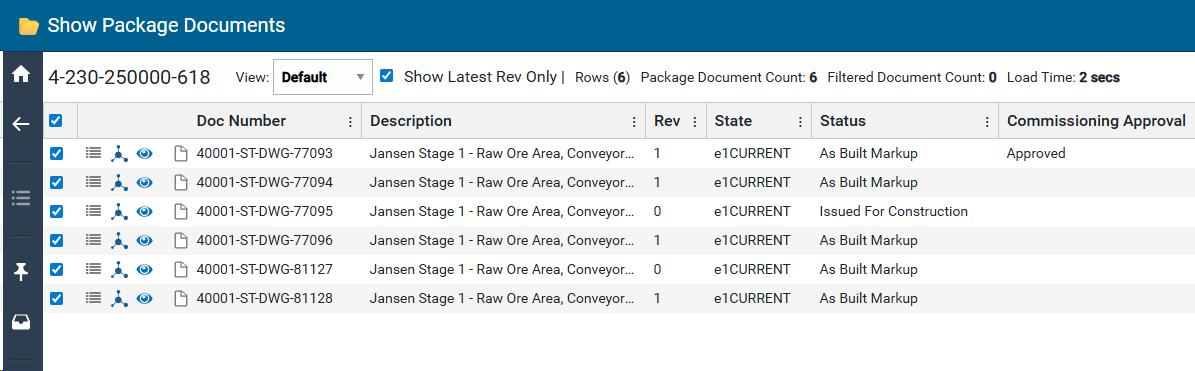
Once the Work Package list is filtered, open the action menu of the desired Work Package and select 'Show Package Documents' to view the list of attached documents
Show Work Package Documents Overview
Graphic #
Name
Description
1
Work Package Number
Unique identifier for Work Package
2
Select toggle for attached documents
Allows for single or multi select of attached documents to complete action(s)
3
Action Menu
Reveals action items for line item
4
Infomap
Opens infomap for document in new tab
5
View and Markup
Opens new tab to view and markup document
6
Doc Number
Document number
7
View
Viewable documents based on organization
8
Description
Document Title
9
Show Latest Rev Only
Toggle: Shows all associated work package documents or current revision only
10
Rev
Document revision
11
Rows (n)
Total visible rows
12
State
State of document, current or superseded
13
Package Document Count
Total amount of uniquely named documents, excludes different revisions of documents
14
Status
Current status of document. (As Built Markup, Issued for Construction, Draft)
15
Filtered Document Count
Total count of documents currently filtered
16
Commissioning Approval
Current state of approval
17
Load Time
Total time loading package documents. Will stop counting up once load is completed.
18
Parent Package
Parent package of document
19
Rel
“M” denotes the package relationship to the Master, while "R" denotes if it is a revision relationship
20
Source
Source from Authored or Published documents
21
Originating Org
Originating organization of document
22
Controlling Org
Controlling organization of the document
23
Receiving Org
All organizations receiving document
24
Subsystem
Which subsystems the document is related to
25
To Excel
Export list of all document data which are toggled selected within table
Sorting and Filtering Documents
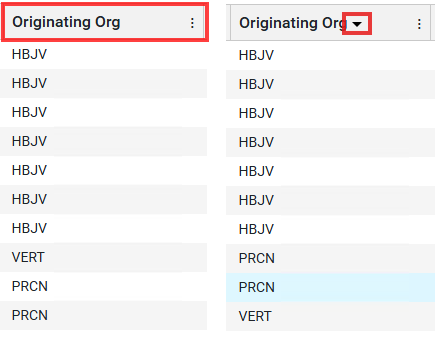
Sorting
Click on the column header to either sort the column by ascending or descending order. Arrow direction defines how the column is currently sorted.
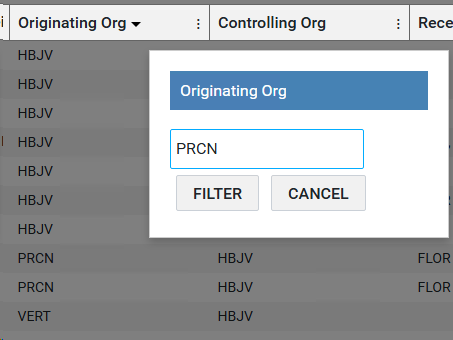
Filtering
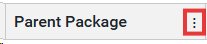
Select the columns menu button to open the columns filter.
Input the text you're filtering for and press the enter key, or 'Filter' to confirm. Cancel to cancel the action.
Clearing the filter
To clear the filter, select 'CLEAR FILTER' to reset the document table to default.