Workflow 2
This workflow applies when the instrument does not exist in the model, and both P&ID and the DDP correlated to it have been retrieved in the S3D.
1. Before correlating or updating the instrument with the instrument tag retrieved from DDP, make sure the parent pipe run has already been correlated (Pipe Runs Workflow), otherwise you will get an error message.
2. Load the pipeline where you want to insert the instrument from the retrieved DDP into the S3D workspace.
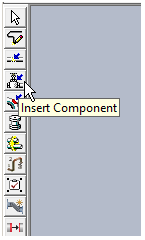
3. Expand the piping task toolbar and click Insert Component.
Result: The P&ID Viewer opens, together with a prompt to select the component, in our example, instrument tag FV-00581 for which we have already retrieved the DDP earlier to be placed from the viewer.
Important: The system displays error messages in the following situations:
-
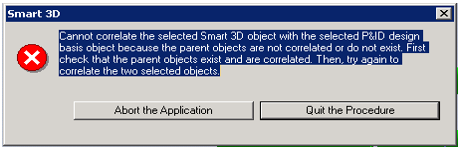
If the parent pipe run has not been correlated, the following error message is displayed:
-
If you select a component for which no DDP data is retrieved:
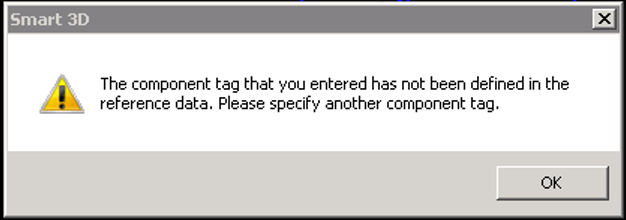
4. After selecting a valid instrument from the P&ID File Viewer, place and position the component in the S3D model.
5. Click Finish.
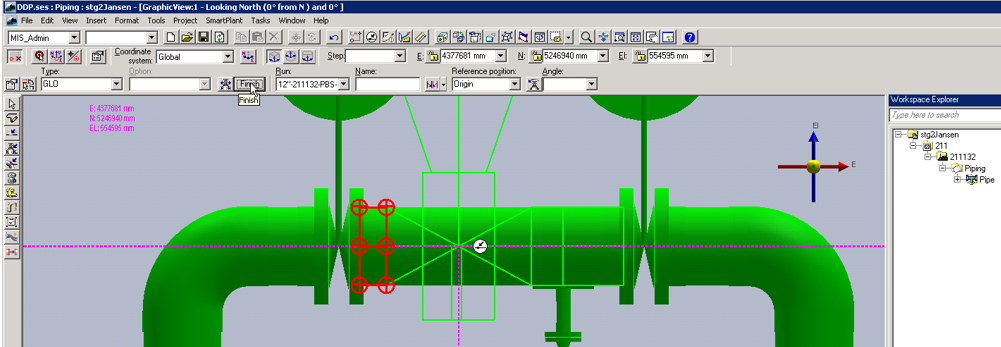
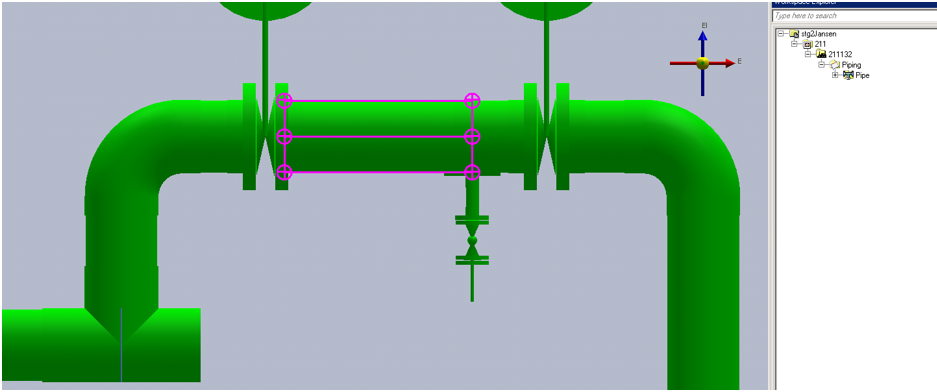
5. Open the properties dialogue for the inserted instrument and verify that it has been placed with correct tag and dimensional data.
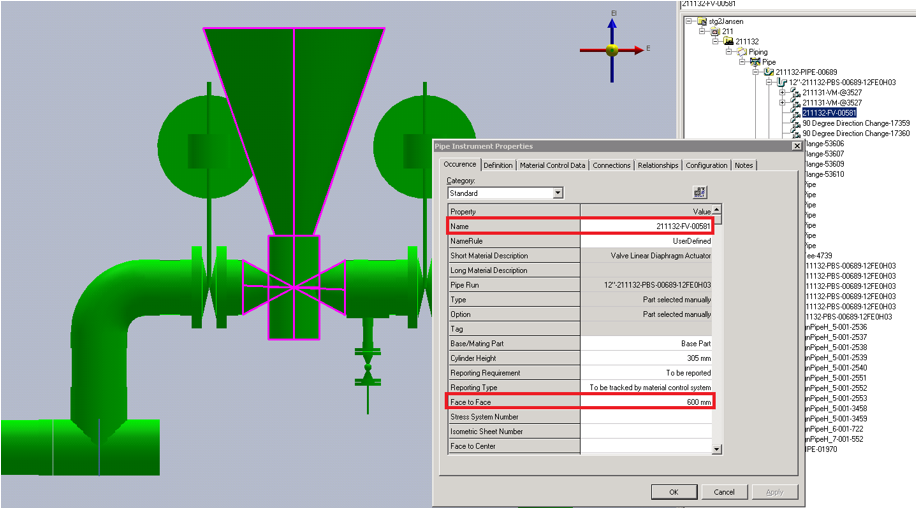
6. Select the valve feature.
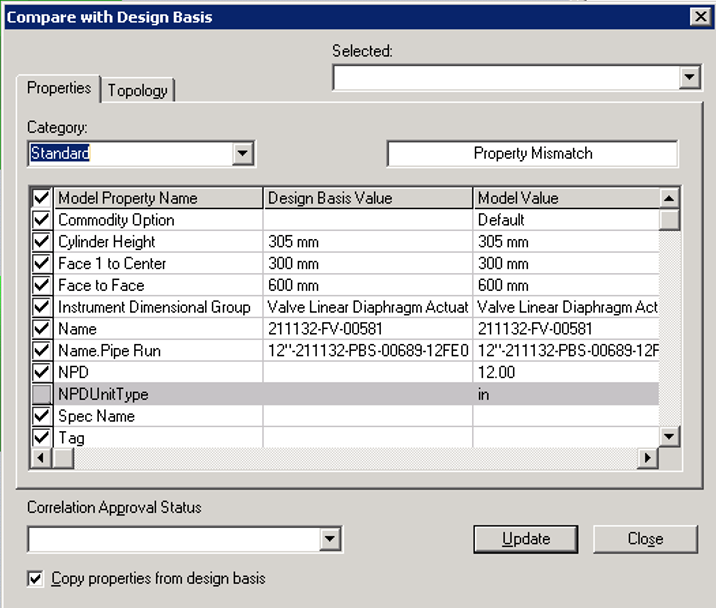
7. Expand the SmartPlant menu from the top ribbon and select Compare with Design Basis.