View Inconsistency Reports in Microsoft Excel
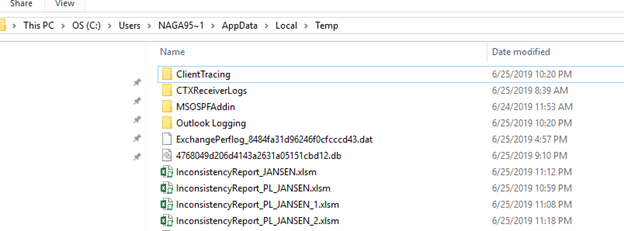
All four types of inconsistency reports are saved by default at the user profile temp location, unless the user has defined otherwise.
The reports are saved under the default name InconsistencyReport_PL_JANSEN.xlsm.
Note: To view graphs and charts in the summary inconsistency report, you must enable all macros in Microsoft Excel. To enable macros, click File > Options > Trust Center > Trust Center Settings > Macro Settings > Enable all macros.
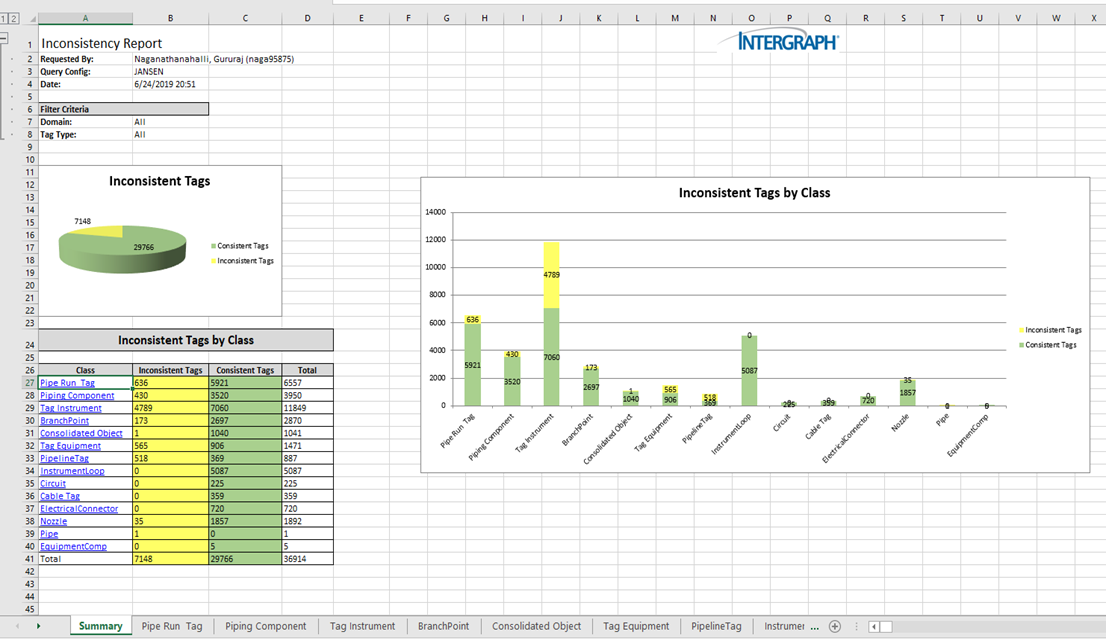
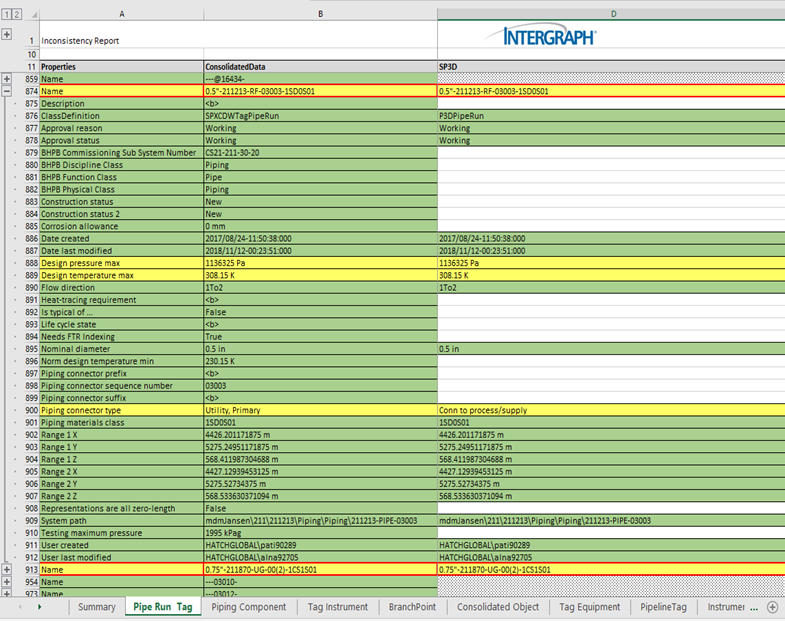
Figure 1: Sample area-level reports (area 211) with sample data, showing all tags per class in each sheet
1. Click "2" at the top of the sheet to expand the full list
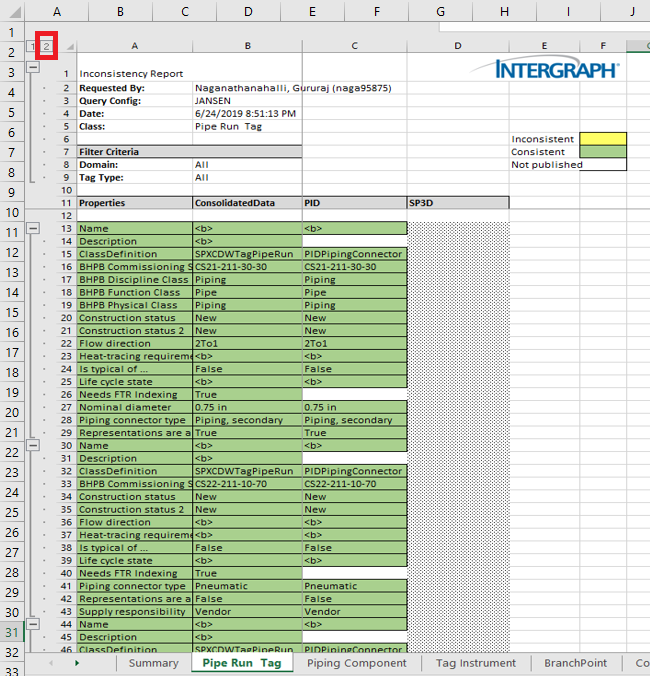
Result: Inconsistencies are highlighted in yellow, as shown in the following screenshot.
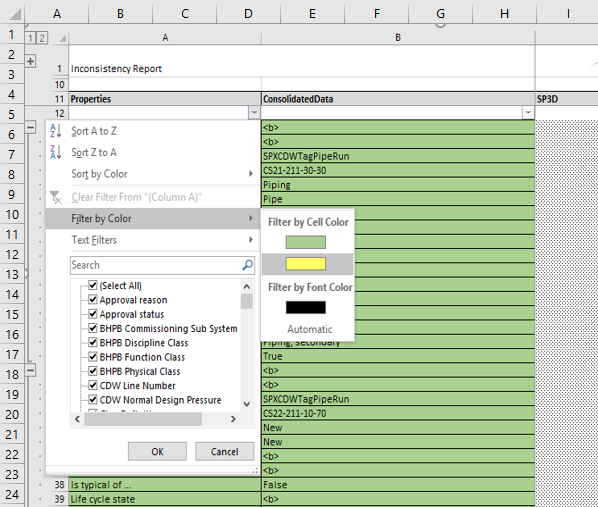
2. Filter the inconsistencies for one or more classes by color (yellow) to display them in a single view.
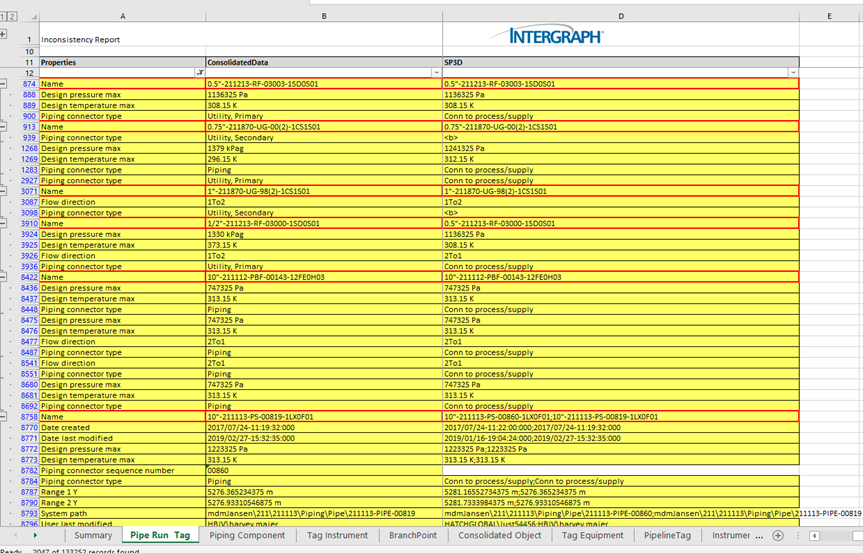
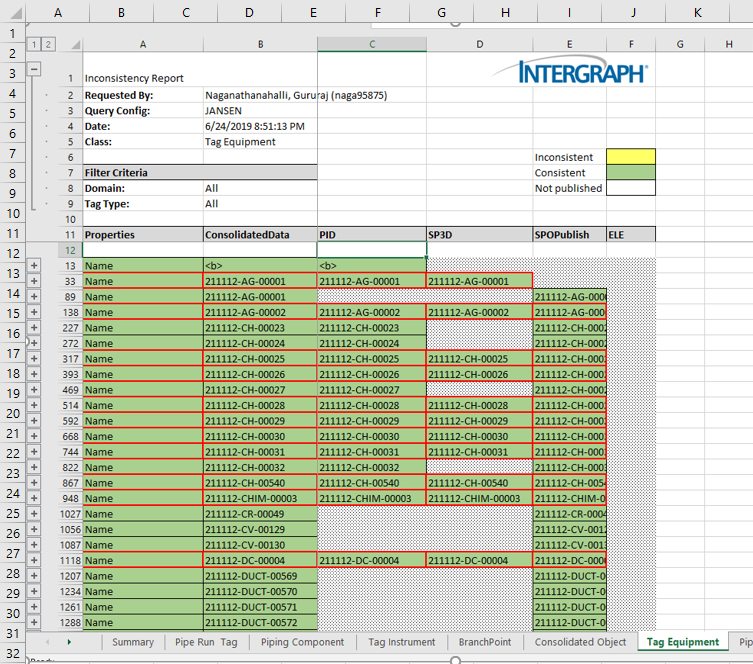
Properties that are not published from certain domains are left blank and the remaining domain tags, if they are consistent, are reported as consistent.
Note: Non-availability of a tag property in a domain does not report the tag as inconsistent if the available values match.