SP&ID To Do List
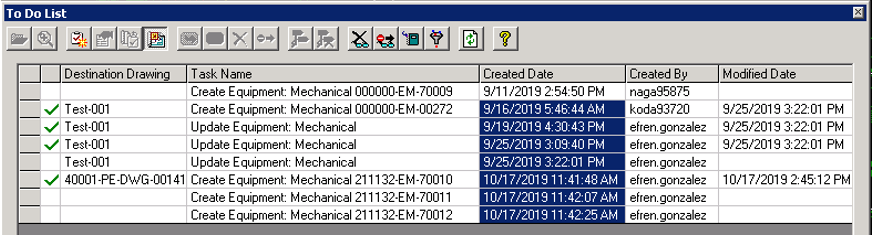
The To Do List enables users to manage tasks that need to be run within a SmartPlant P&ID database in order to keep the plant current with information from the SmartPlant Foundation database. To open the To Do List, expand the SmartPlant menu from the top ribbon and select To Do List... All commands associated with the To Do List are located on the To Do List toolbar. The functionality of each command is explained below.
 Open Drawing — Opens the drawing associated with the selected task. If the drawing is not active, this command activates it. Any currently open drawings remain open. This command is available when a drawing-specific task is selected and the drawing is not currently open or active. If multiple tasks are selected, this command is available only if they are assigned to the same drawing. You can assign or reassign a Create task, but Update and Delete tasks that are already assigned to a drawing cannot be reassigned.
 Zoom In — Centers and zooms in on the drawing items associated with the selected tasks in the Drawing view. When a task is selected, the Zoom In command allows you to visually inspect the referenced objects in the context of the surrounding drawing and is available when the selected task is associated with graphics and the drawing that contains the object is open and active. If multiple tasks are selected, this command is available only if all the tasks meet these criteria.
 New Manual Task — Displays the Task Properties dialogue box, and allows you to manually create a new task.
 Properties — Displays the Task Properties dialogue box for the selected task. This dialogue box shows the detailed properties of the task. This command is available only when a single task is selected.
 Assign Drawing — Creates an association between the selected task and a particular drawing. The Assign Drawing dialogue box opens and lists the available drawings. This command is available when you select manually added tasks or tasks resulting from the Create command. If multiple tasks are selected, this command is available only if all the tasks meet these criteria.
 Create in Drawing — If this command is activated, the item created by running the selected task is placed on the active drawing. If the command is not activated, the item is created in the plant stockpile.
 Run — Runs the task that you select from the list. This command is available when an executable task is selected, the associated drawing is open and active, and the status of the selected task is either Open or Error. This command is not available for manually created tasks; it is available only for tasks generated automatically by integration and importing data. If multiple tasks are selected, this command is available only if all the tasks meet these criteria.
Note: When a task runs, the status of the task and the Run Date and Run By properties are updated. If the task is completed successfully, the status is updated to Completed. If a problem occurs, the task status is updated to Error  . If a Create task is completed successfully, but the software has made changes to the item tag, the status is updated to Completed with Warning
  . When the status is Error or Completed with Warning, a timestamp and error message are added to the Notes area on the General tab of the Task Properties dialogue box.
. If a Create task is completed successfully, but the software has made changes to the item tag, the status is updated to Completed with Warning . When the status is Error or Completed with Warning, a timestamp and error message are added to the Notes area on the General tab of the Task Properties dialogue box. Defer — Toggles the status of the selected tasks between Open and Deferred . This command is available only when the selected tasks have Open, Error , or Deferred status.
 Delete — Allows you to delete the selected task from the To Do List. This command is available only when one or more tasks are selected. A confirmation dialogue box appears to verify deletion of the selected task or tasks.
 Ignore — Allows you to specify the selected task from the To Do List as an ignored task. This command is available only when one or more tasks are selected. When you invoke this command, the software moves all the selected tasks to the list of ignored tasks. An ignored task is skipped for all subsequent retrieve operations. To make a task available for running again the next data retrieval, it must be deleted from the "ignored tasks" list.
 Correlate — Allows you to correlate tasks manually when a retrieved item tag does not match the defined correlation criteria. This command is available only when a Create task is selected. To correlate an item, you select a suitable item on the drawing sheet or in the Engineering Data Editor. After correlation, the Create task changes to Update and the software removes any properties on the task that have the same values as those of the item selected on the drawing sheet.
Note: Correlation is allowed under the following conditions:
-
The selected item cannot have an existing design basis for the same tool from which the item was published.
-
The selected item must be of the same item type as the item for which the Create task applies.
-
If a catalog item exists for the selected item, its catalog item type must be the same as the catalog item type defined for the Create task.
 Uncorrelate — Allows you to uncorrelate tasks related to items on the drawing sheet or in the Engineering Data Editor. This command is available only when Update or Delete tasks are selected. After uncorrelating tasks, the items will no longer be correlated with the tool from which those tasks were retrieved. The tasks are permanently removed from the To Do List and do not appear on the deleted tasks list. The next time the document is retrieved, the To Do List is updated.
 View Deleted Tasks — Toggles the view between the To Do List and the deleted tasks list. To completely delete tasks, you select them from the deleted tasks list and click Delete . View Ignored Tasks — Toggles the view between the To Do List and the ignored tasks list. To make tasks available for running again the next time you retrieve data, you select them from the ignored tasks list and click Delete .
 Report — Opens Microsoft Excel and runs a report on the contents of the To Do List. This command is only available from the To Do List toolbar, but the report template, To Do List.xls, produces reports the same way as other reports are produced.
 Filter / Sort Tasks — Opens a dialogue box that allows you to filter or sort the list of tasks by the headings in the To Do List. This is useful if, for example, you want to filter or sort the tasks in order to run tasks of one type only, such as Create tasks.
 Refresh — Updates the information that is displayed in the To Do List. Since only one To Do List is generated per plant, multiple users can be working in the To Do List at the same time, and so the information can change at any time. You can use the Refresh command to stay up-to-date.
 Group Related Tasks — When this button is depressed, clicking on the column header not only sorts the tasks based on the selected sort key but also groups the related tasks. If the Group Related Items button is not depressed, then clicking on the column header only sorts the tasks based on the selected column sort key.
Sort to get desired document / tags.
Select the Properties icon to see properties published by CTA:
icon to see properties published by CTA: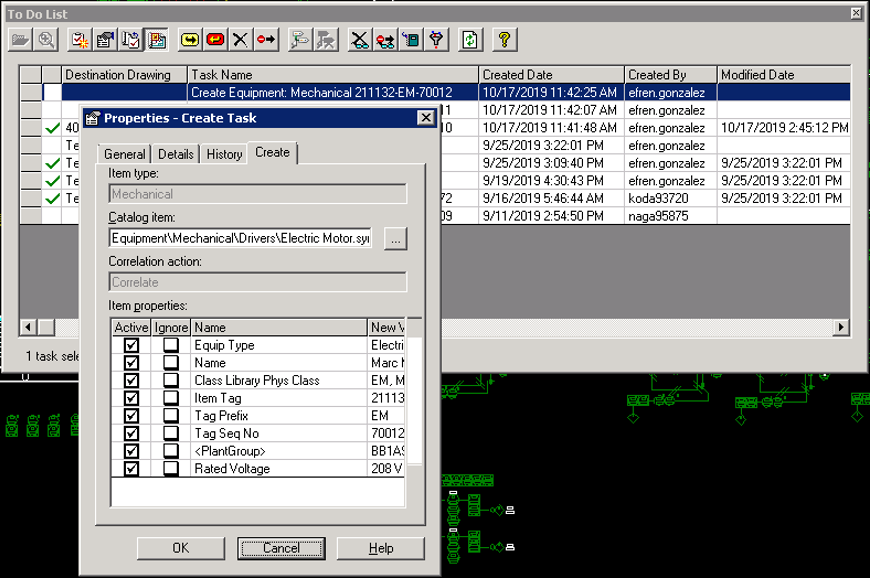
Select desired tasks and click on Run.
Run.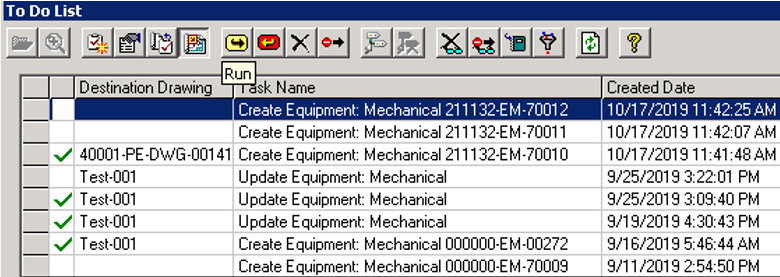
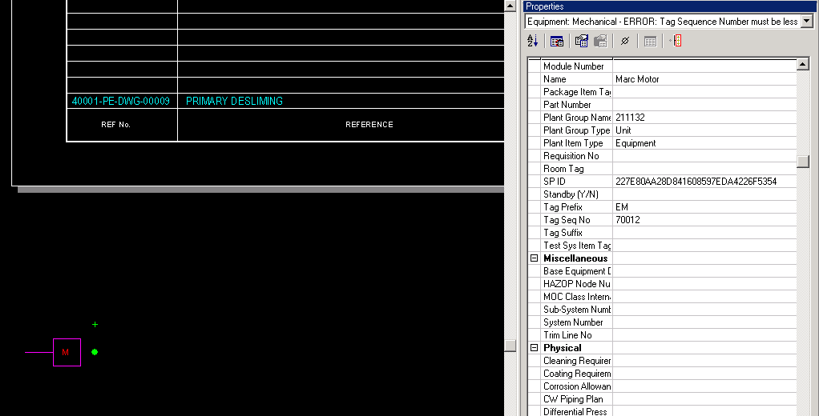
The plant item gets created outside the bother on the bottom left corner, and the tasks gets a green check mark indicating that it has been completed.