Retrieved Cables Workflow
While processing the retrieved cables, S3D does not automatically correlate the to/from device of the cable. We can do this manually using Design Basis Viewer.
1. Expand the SmartPlant menu and select Design Basis Viewer...
Result: The Design Basis Viewer window opens.
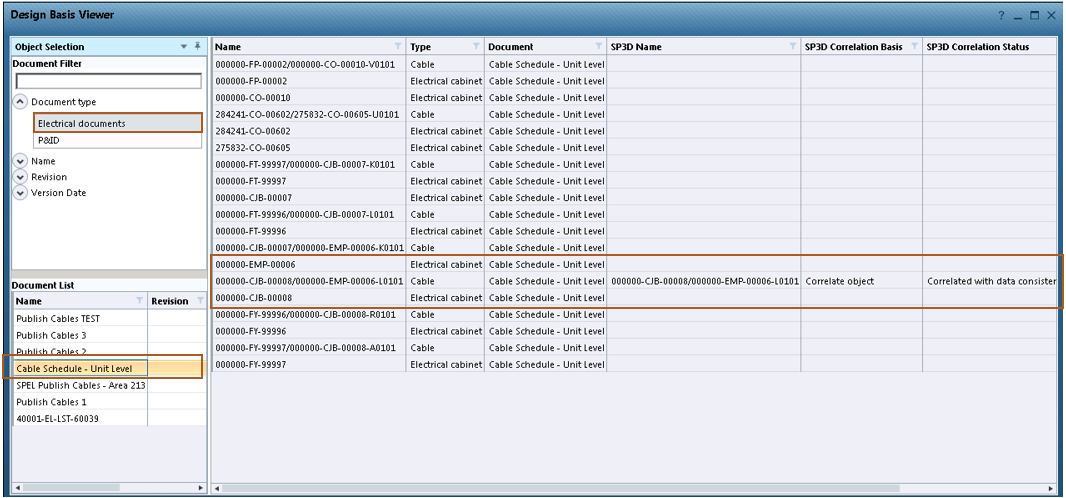
2. In the upper section of the left-side pane, under Document type select Electrical documents
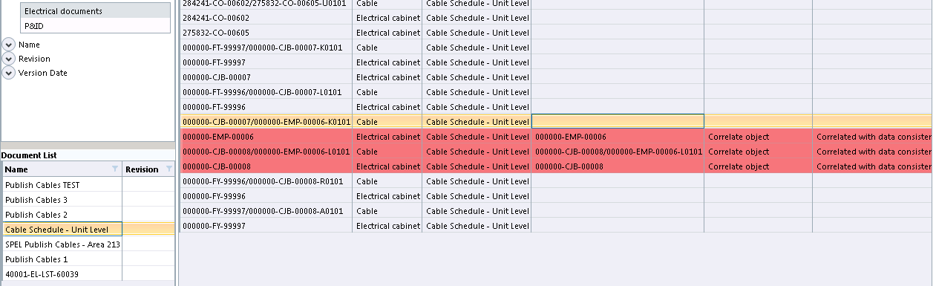
3. In the lower section of the left-side pane select Cable Schedule - Unit Level to filter the objects from the retrieved cable schedule. As shown in the following figure, the cable is correlated, but the "To" and "From" devices are not.
3. Right-click the From device (000000-CJB-00008) and select Correlate with Design Basis
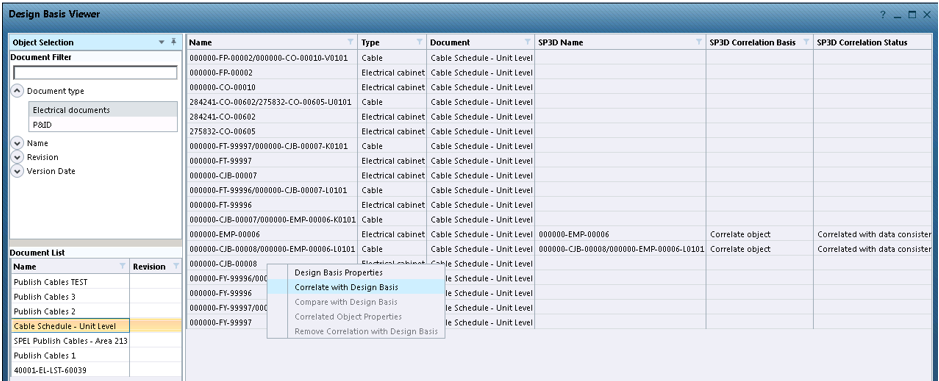
Result: The system will prompt you to select the S3D object to be correlated.
4. Select the corresponding equipment tag
Result: The Correlate with Design Basis dialogue opens. This allows you to update the model attribute values from the design basis.
5. Select the attributes to be updated and click Update.
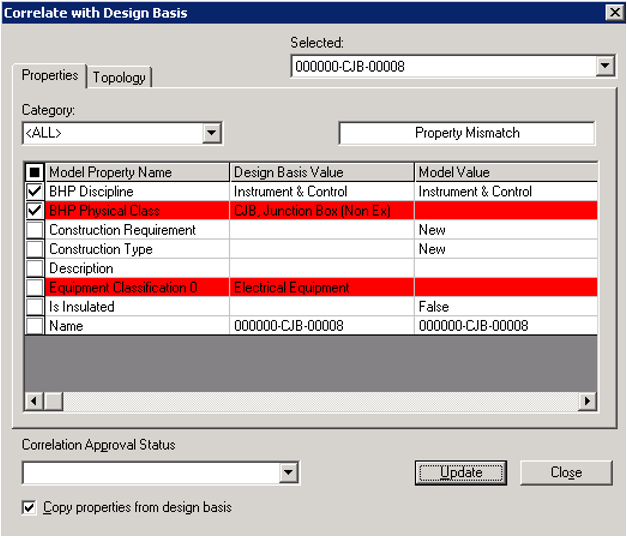
6. Repeat steps 3-5 for the To device (000000-EMP-00006)
Note: As shown in the following dialogue window, we are pushing BHP classification information for equipment from design basis (SPI) to S3D.
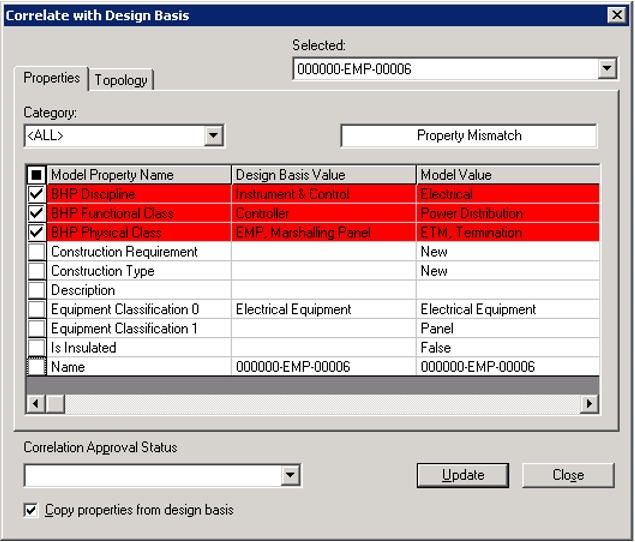
Result: Both the To and From devices and the cable are correlated with data consistency.
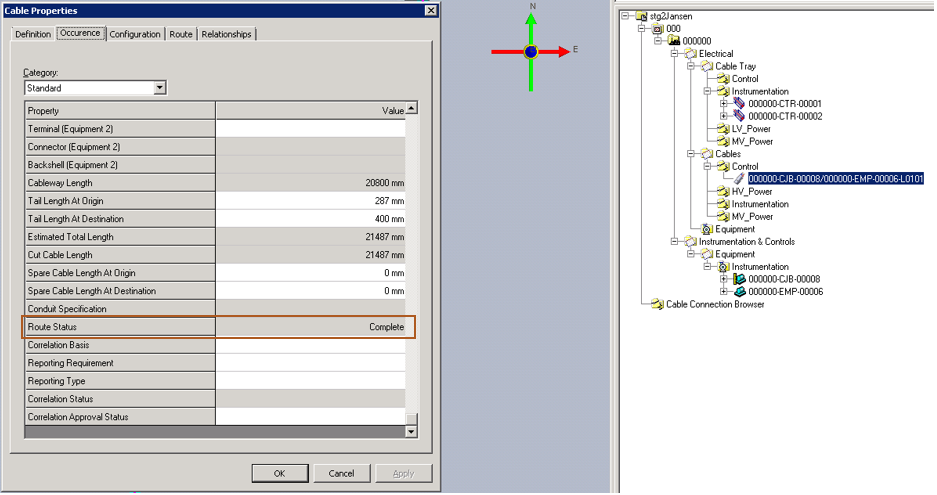
7. Check the cable properties to ensure that its Route Status is set to Complete.
The correlated cable can now be published to S3D so the cable length and routing information can be retrieved in SPI/SPEL. Refer to Publishing using 3-D Model Drawings.