Retrieve SPI/SPEL Cable Schedule
This section describes the steps to retrieve SPI/SPEL cable schedule. To do this:
-
The SPI/SPEL schedule must have already been published to SPF with updated attributes
-
The source and destination equipment for the cables exist in S3D
1. Expand the Tasks menu and make sure the Electrical Task is loaded in S3D and active permission group is set to MIS_Retrieve.
2. Expand the SmartPlant menu at the top ribbon and click Retrieve... If you haven't logged in, you need to enter your credentials at the prompt.
Result: The Retrieve dialogue window is displayed.
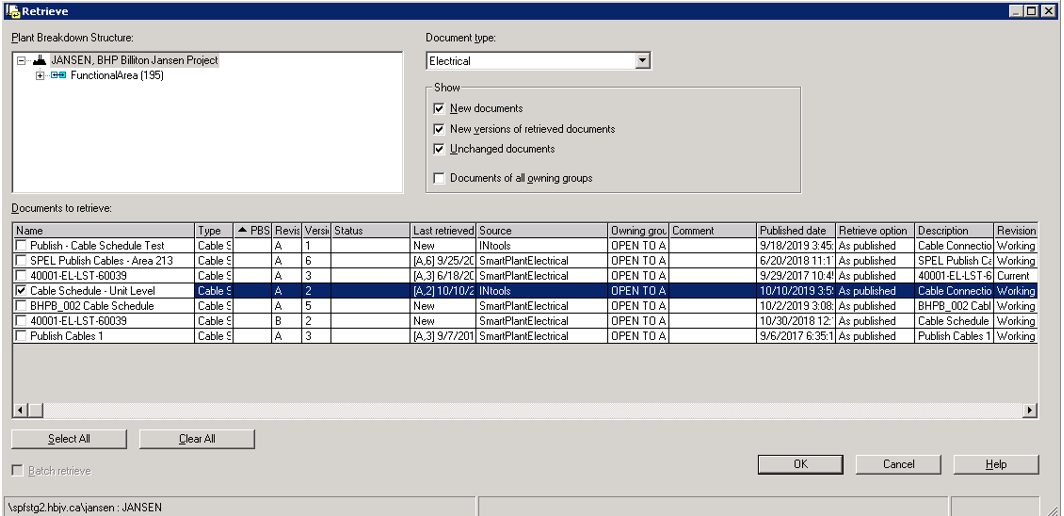
3. Under the Show section, check the first three checkboxes and the document to be retrieved, as shown in the following figure.
4. Click OK.
Result: A dialogue window is displayed, confirming the successful retrieval of the document.
5. Load the required content in the S3D workspace using a filter.
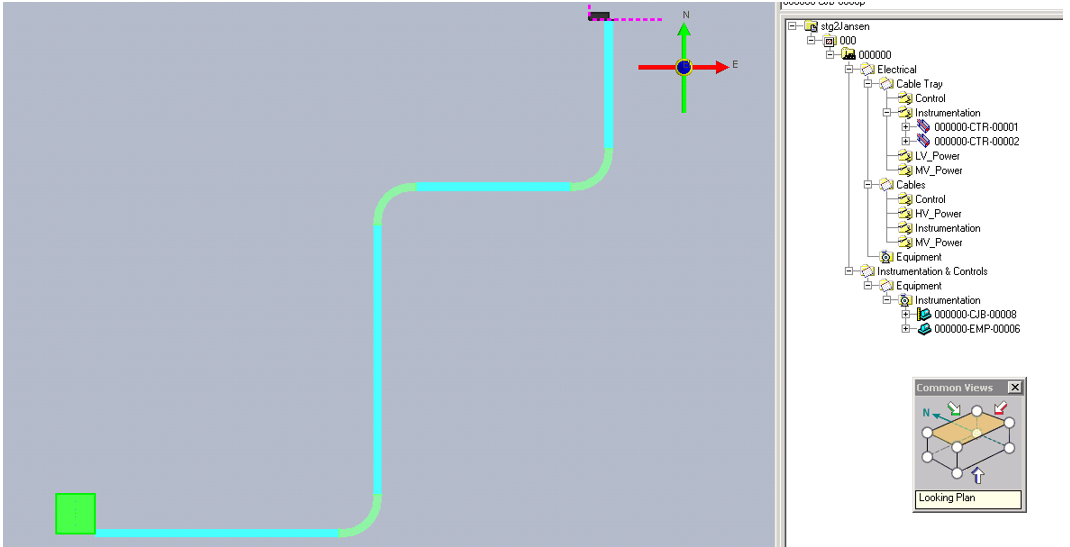
Result: The workspace displayed the following:
-
Source and destination equipment of the cables you want to create from the retrieved cable schedule
-
Destination system for the newly created cable
-
Raceway through which you want to route the cable.
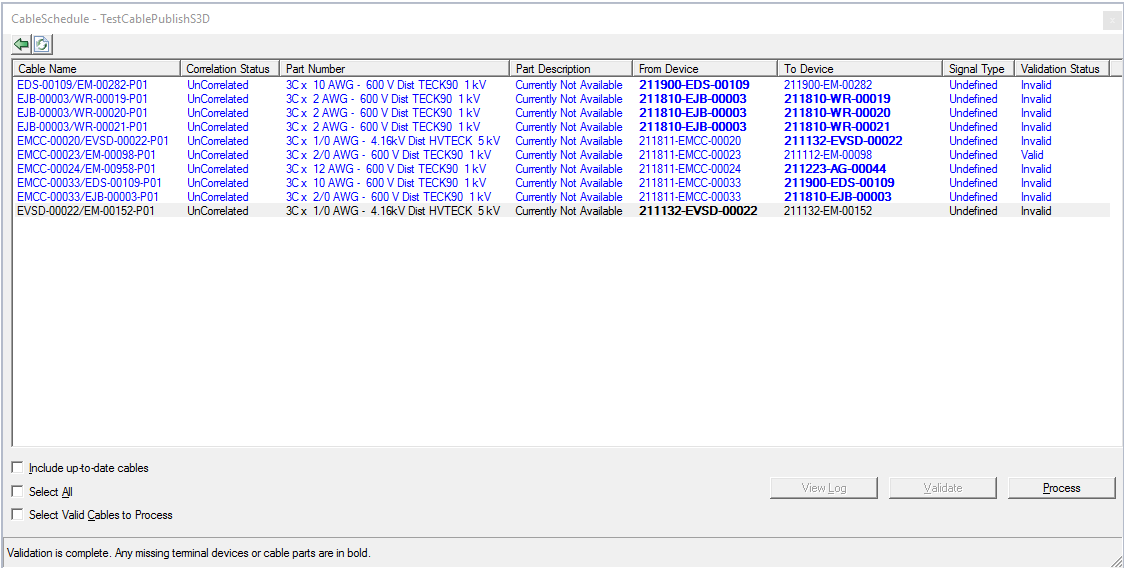
 6. In Electrical Task, expand the SmartPlant menu and select View Cable Schedule...Result: The Cable Schedule Documents dialogue window opens.7. Select the document you want to process and click Open.Result: The unit level window opens, showing all the cables published through the selected cable schedule document.8. Select one or more cables as required and click Validate.
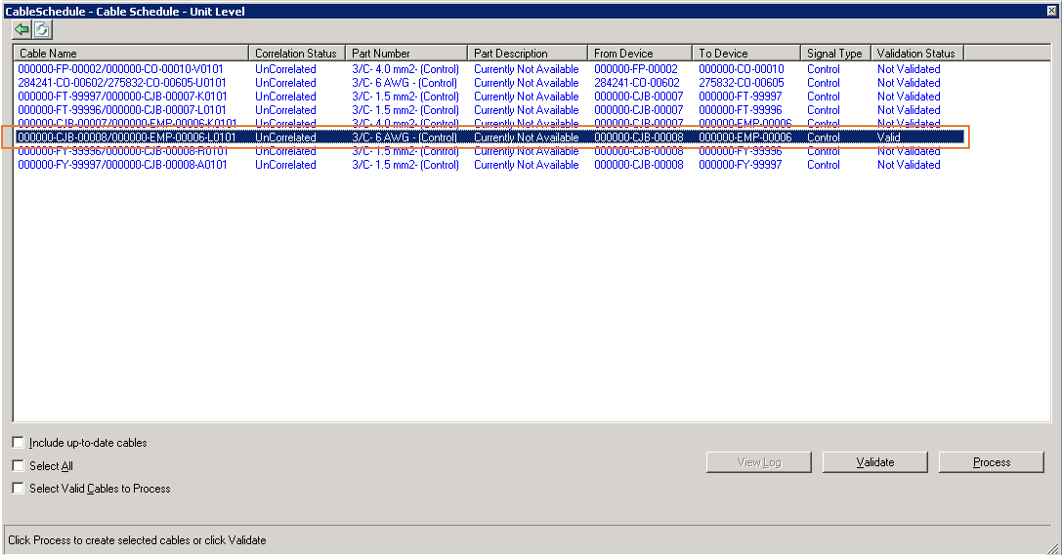 Note: The column Validation Status will show the status Valid if the selected cable is valid for processing. To be valid for processing, the cable's both "From" and "To" device tags must exist in S3D. If any of these device tags is missing in S3D, it will be displayed in bold letters .
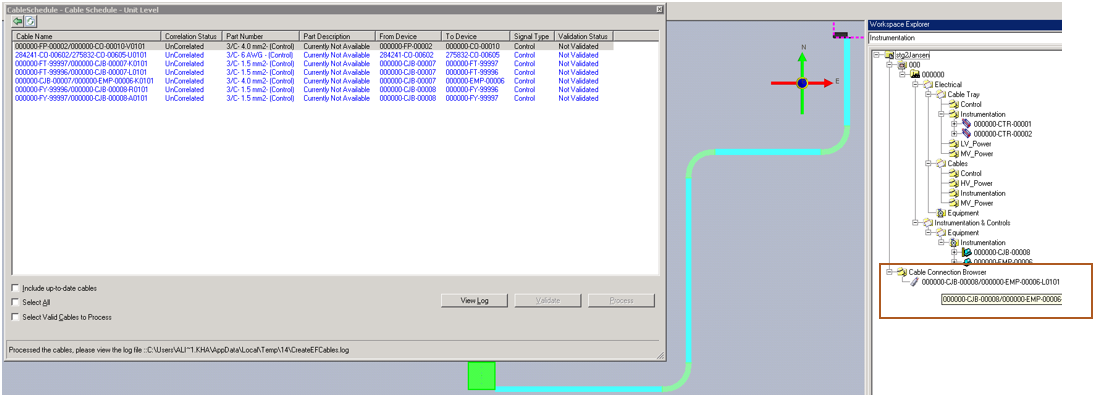
 9. After the cables to be processed have been validated, select them and click Process.Result: The processed cable record is removed from the dialogue window.Note: If the checkbox Include up-to-date cables was checked before processing, the processed cable record will turn green.Important: In the S3D workspace explorer you can see a root-level system node for the cable schedule document and under it, the retrieved cable. This cable must be moved to the required parent system.
 10. Right-click the cable and select Properties. The originating and terminating devices are already set and the cable links between the two devices is displayed.11. Set the terminal/connector for the cable.Note: For cables other than the signal type and dry weight, all the properties for the cable are set based on cable reference data in the catalog. It is important that for both SPI and SPEL, reference cable data matches the corresponding cable data in the S3D catalog.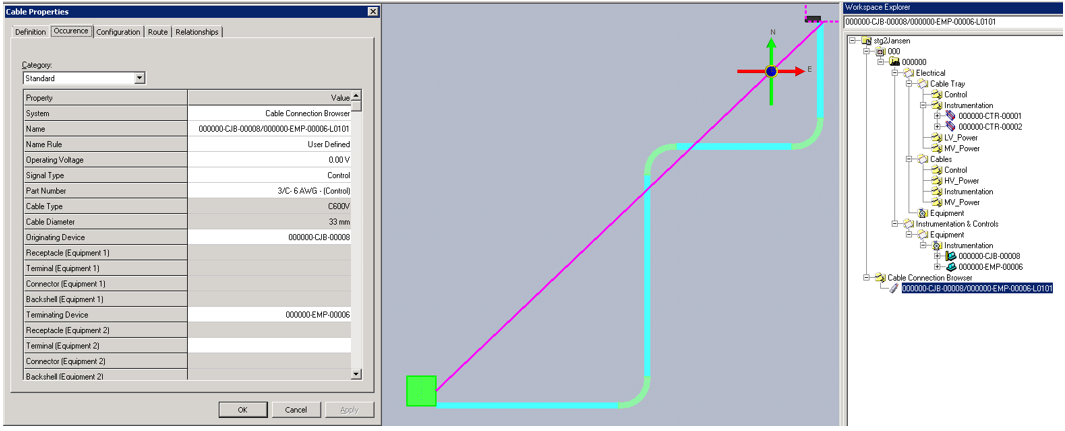
The next step is to perform cable routing. Before routing the cable, check the raceway properties to confirm if the signal type allowed by the raceway matches the signal type of the cable. If it doesn't, you get a warning when trying to route the cable.
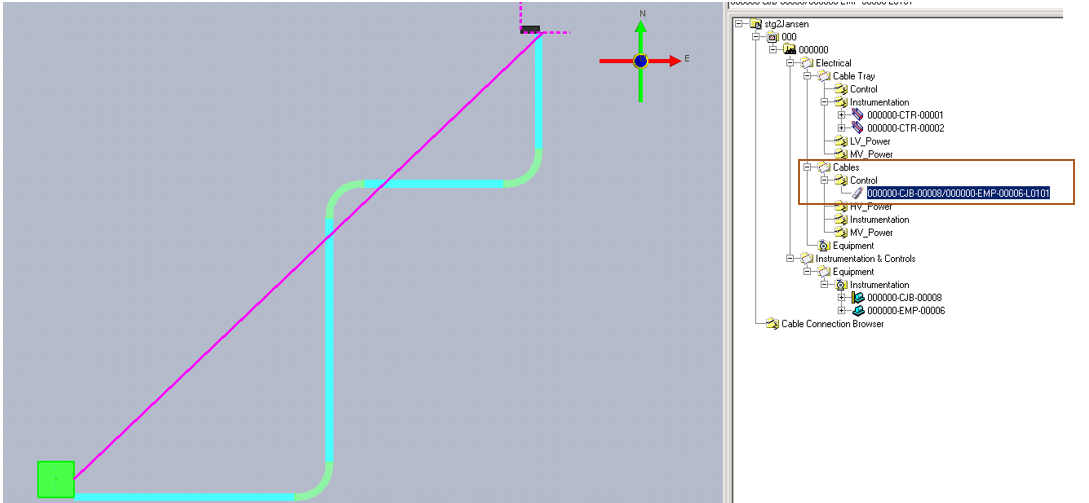
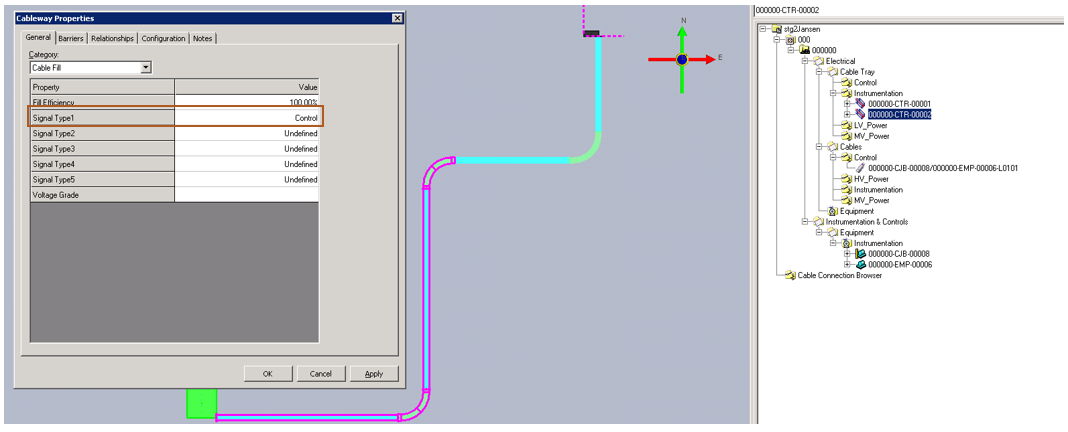
For detailed instructions on how to route a cable, refer to the Electrical Task User Guide in S3D.
The routed cable is shown in the following figure.
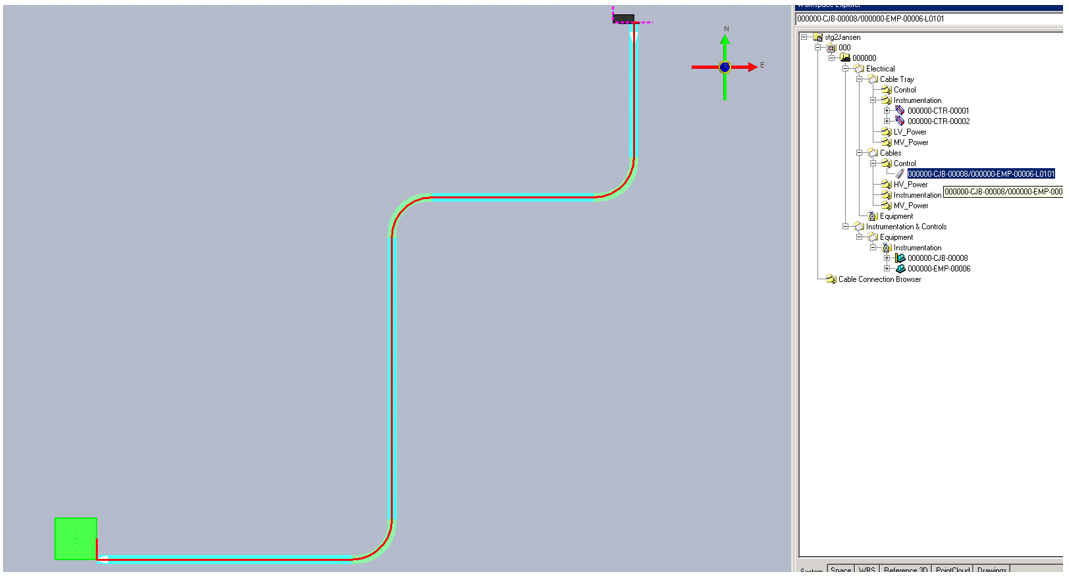
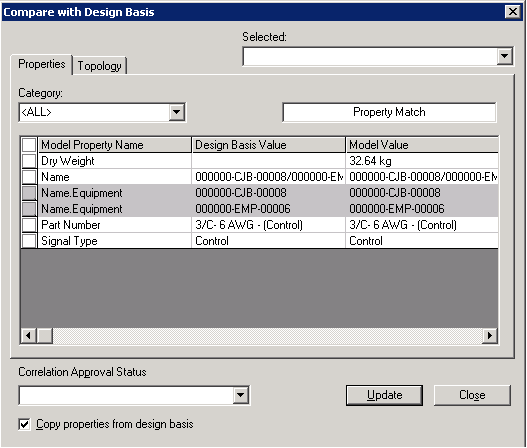
With the cable selected, expand the SmartPlant menu from the top ribbon and select Compare with Design Basis to check for any discrepancy between the design basis and the model values.
The following image shows everything is matched.