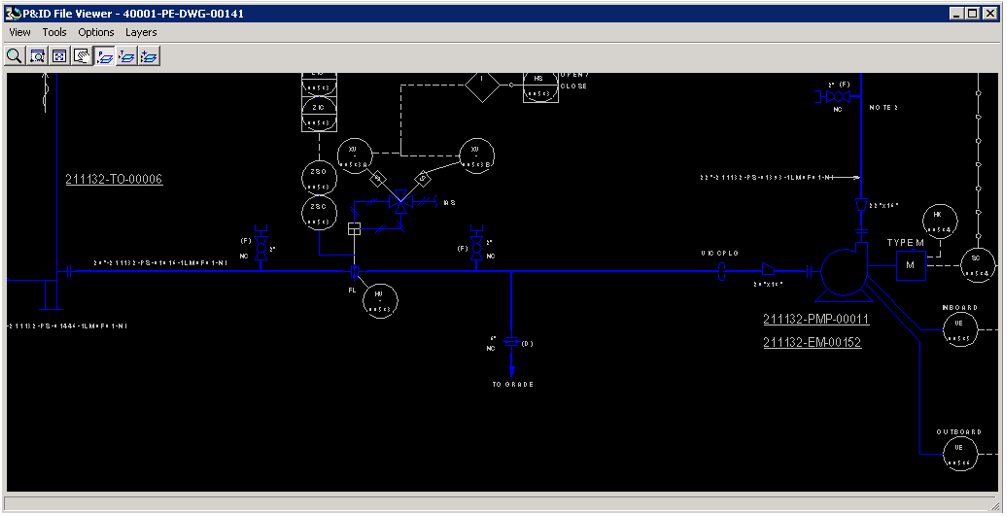
Retrieve and View P&ID Drawings in S3D
The first step is to bring the S3D model content that needs to be correlated into the S3D workspace. In this example, we will use P&ID 40001-PE-DWG-00141, we will be working on pipeline 211132-PIPE-01016 which discharges from equipment 211132-TO-00006 and connects to suction nozzle of pump 211130-PMP-00011.
1. Start by selecting the workspace filter as shown in the following image:
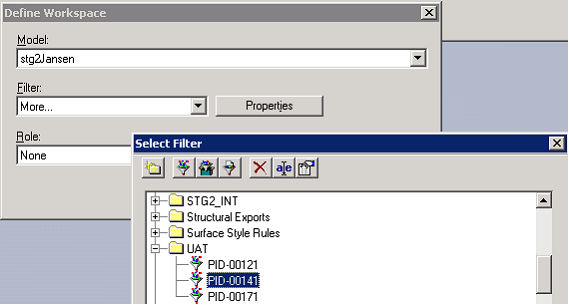
Result: This loads all the required pipeline and equipment objects into the workspace.
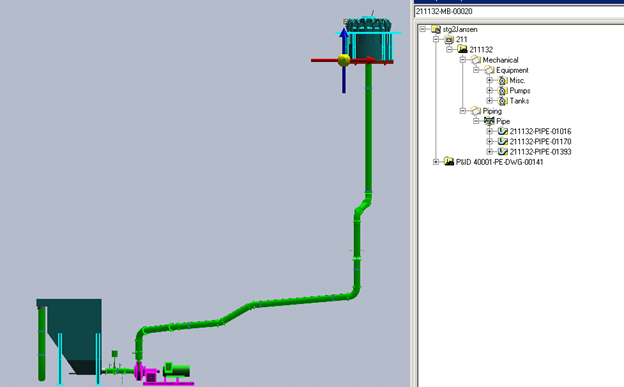
2. The next step is to retrieve is the P&ID 40001-PE-DWG-00141. Before starting to retrieve make sure that the active permission group is set to MIS_Retrieve.
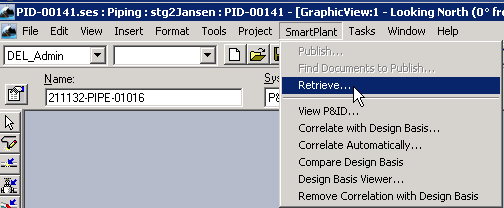
3. Click SmartPlant in the top ribbon and select Retrieve…
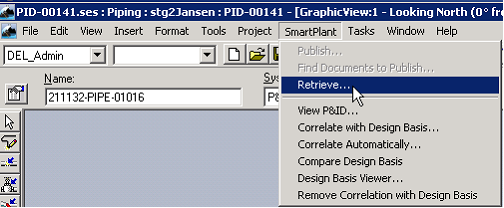
Result: After a couple of minutes, the Retrieve dialogue window is displayed.
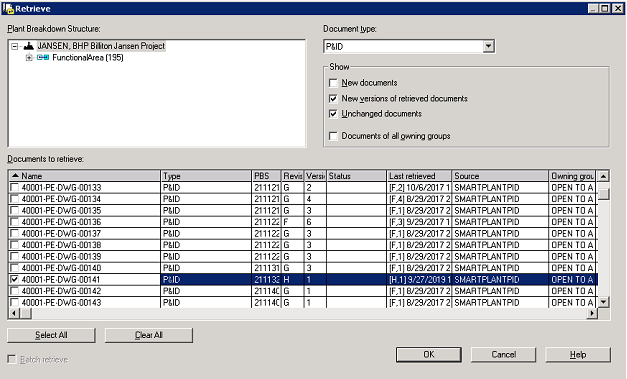
4. In the Retrieve window, confirm the settings are as shown in the figure above.
5. Select the P&ID from the list.
6. Click OK to start the retrieval process.
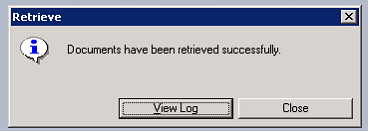
Result: A pop-up window confirms that the P&ID is successfully retrieved.
7. Expand the Options menu in the top ribbon of the P&ID File Viewer and select Set Correlation Status Colors
8. Review the color coding for the different correlation statuses.
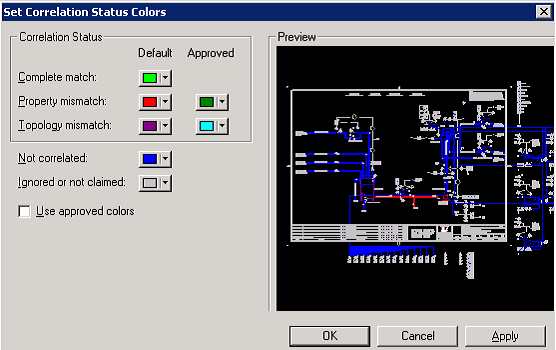
9. Click OK.
Result: After the P&ID is retrieved you will see the P&ID node in the system hierarchy with all the pipeline from that P&ID.
Note: The system creates any new pipeline under the P&ID node and it correlates the pipelines. If the modelled pipeline already exists under system hierarchy then this retrieved pipeline object under P&ID node should be un-correlated and deleted, else these pipelines should be moved under correct parent system and permission group changed to MIS_Piping.
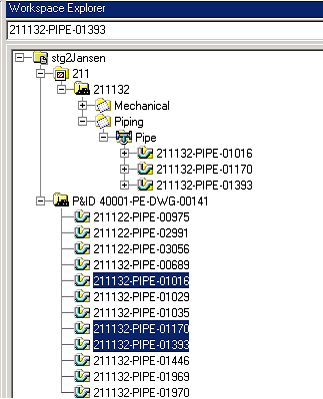
10. Select the pipeline 211132-PIPE-01016
11. Expand the SmartPlant top ribbon menu and click View P&ID… to open the P&ID drawing.
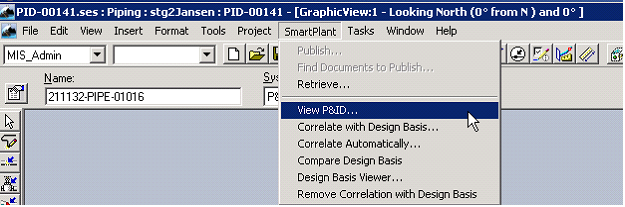
Result: The drawing opens in the P&ID File Viewer