Publish Single-Line Diagrams
Single-line diagrams must be saved and given document names in SPEL to be published. They can be located under the Documents folder in the Electrical Index.
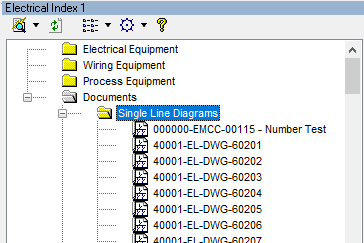
To publish a single-line diagram:
1. Right-click the diagram name and select Publish...
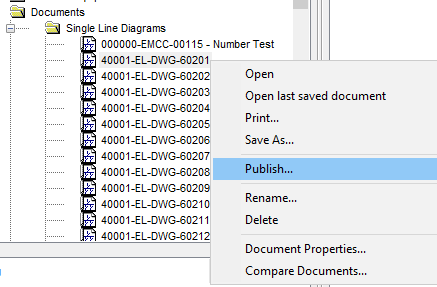
Note: If you haven’t logged in SPF you will be prompted to enter your credentials.
SmartPlant Electrical verifies with SPF whether this is an already published document or a new one.
a. If this is a new document, a revision must be reserved in SPF. This is a one-time process for drawings published for the first time. If the drawing is being published for the first time, the following window opens:
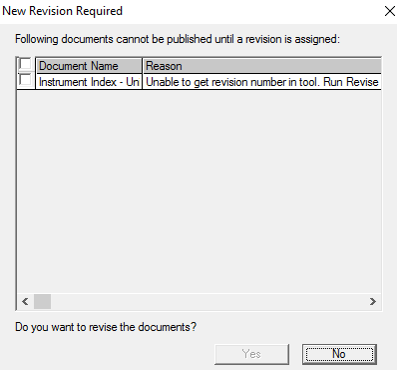
b. Select the checkbox next to the drawing and click Yes.
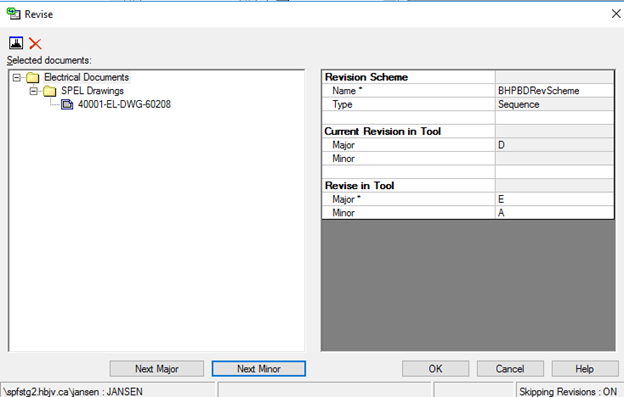
Result: The Revise window opens.
In the Revise window, the following information is needed:
- Revision scheme to be used in SPF, which is already populated and cannot be modified, and
- The revision to use in SPF: In the Revise in Tool section, under Major*, select the same revision as the one displayed under Current Revision in Tool. The revisions in SPEL and SPF must match.
c. Select Next Major to get the next available revision.
d. Click OK.
After the confirmation of the successful creation of a revision in SPF, the publishing process begins. If the drawing has already been published, then the publishing process starts immediately.
Result: The Publish window opens.
5. Configure the highlighted fields as shown in the following figure and click OK.
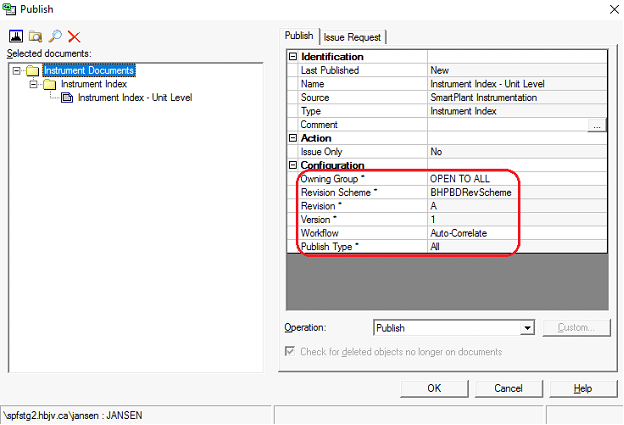
Important: Each publishing attempt has a unique version. For example, each time you publish that same document, the tool will add a new version. This is not a revision, but a log of the number of publishing attempts made. This enables you to see both the successful and the failed loads of that drawing in SPF.
A series of progress screens appears while the tool publishes the data to SPF. This may take several minutes.
6. When the dialogue box appears confirming the successful publishing operation, click Close.