Document Type Tab
If any documents with tasks have been retrieved, the Document Type tab appears in the To Do List. The available tabs change dynamically depending on the type of documents that have been retrieved.
This example shows a retrieved SP&ID drawing, displayed under the PID Drawing tab.
The PID Drawing tab displays any active tasks for that document type . You can organize the tasks in several views:
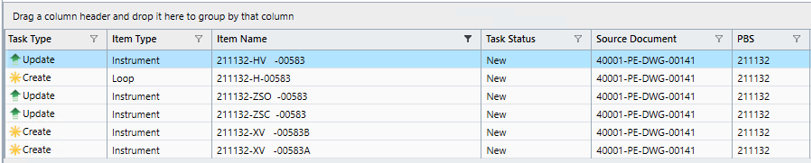
Flat View: This is the default view when you click the Document Type tab. This is the recommended view to work in as it shows all related tasks in one row. For example, the following figure shows the instrument 211-HV- 00583 and its line 20”-21132-PS-01016-1LM0F01-NI).
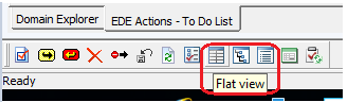

To add a column to the flat view, find the property you wish to add to the view from the Tree View section of the EDE Actions window and drag it into the To Do List. Drag and drop columns to reorganize them.
Tree View: This view is a hierarchical display of the tasks. It is especially useful when working with items organized in a hierarchy. It is a visual representation of parent/child relationships and dependencies, for example, loop – instrument or panel – rack – slot – wiring equipment – strip – channel terminal.
You can choose to run a Create task for a panel, but defer the strip and terminals. If you run the Create task on a terminal, it needs all the parent entities, so you cannot defer the panel and strip.

The Tree View has a few limitations in the way it presents information compared to the flat view.
-
Limited sorting of columns (only Task Type and Source Document columns can be sorted)
-
No option to create filters
-
No option to dynamically group items
-
No search function.
Task View: This view displays only one task in each row and includes the same functionalities as the Flat View:
-
Dynamic searching
-
Sorting – click on a column heading to sort the items
-
Filtering
-
Grouping - drag the column header to the top to group the items by that column.
The Task Properties tab is still available. If you don't see it, expand the Actions menu from the top ribbon and click Properties. The View Actions command is not active in this view. It is only used in the Flat View.
The tasks have different icons attached to them, such as:
-
The "yellow sun" icon
 is a Create task.
 -
The "green arrow" icon
 is an Update task.