Check Published Documents in SPF
1. Log into SPF
2. Select Published Documents... under the Items menu
3. Type the document name or partial name using "*" as wildcard.
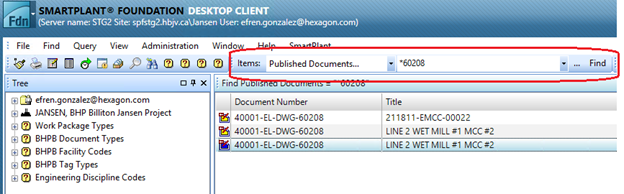
Result: The document is displayed.
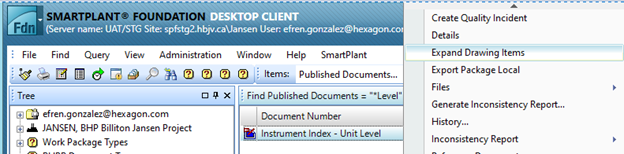
4. Right-click the document and select Expand Drawing Items.
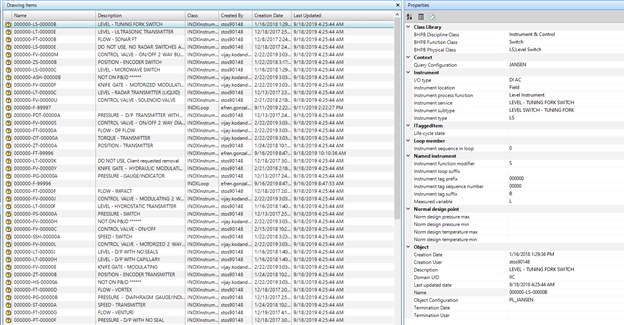
Result: The content of the document is displayed.
5. Select any item to view the properties published by SPI in the Properties pane on the right side of the screen.
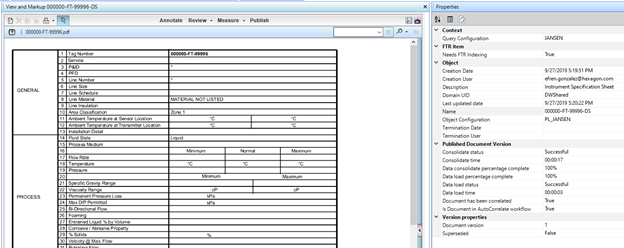
Note: To view files in the document:
1. Right-click the document name
2. Expand the Files menu
3. Click View and Markup...
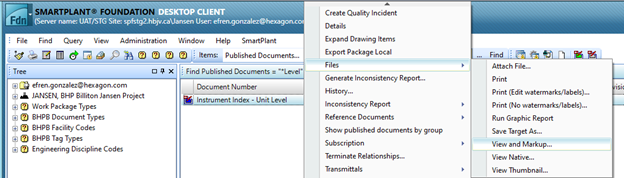
Result: The file opens in the View and Markup window