As the pipeline is already modeled in our workflow, we will follow the steps below:
a. Remove the correlation with the new pipeline created by the system during the retrieval process and delete that pipeline.
b. Correlate it to the existing pipeline.
a. To remove the existing correlation:
-
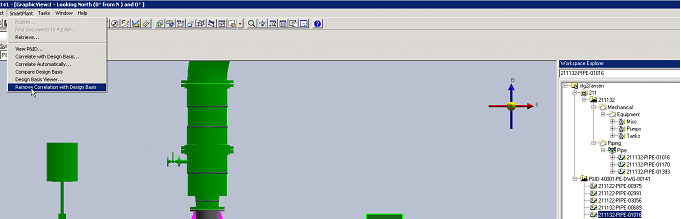
Select the pipeline 211132-PIPE-01016 under the P&ID hierarchy
-
Under SmartPlant select Remove Correlation with Design Basis and then delete this pipeline under P&ID node since will correlate to existing pipeline under S3D plant hierarchy.
Now you can correlate the S3D model to the retrieved P&ID drawing.
This is done by using the Auto-Correlate options first, followed by manual correlation of what the system could not autocorrelate.
Note: Auto-Correlate relies on equipment/nozzle tags and pipeline tags as the starting point for correlation. If nozzle tags don’t match, then the P&ID or nozzles are not connected in S3D model, which means low success percentage of the Auto-Correlate function. This implies that the S3D model must have certain level of maturity to get good results from the function Auto-Correlate.
b. To Auto-Correlate:
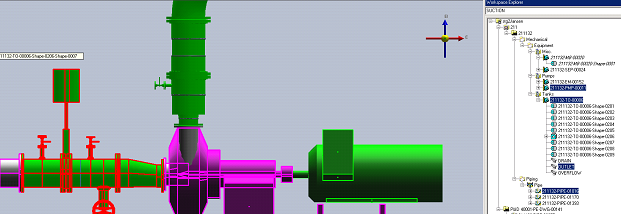
1. Select the content you want to autocorrelate. In this case we select pipeline 211132-PIPE-01016, equipment 211132-TO-00006 and pump 211130-PMP-00011 along with their respective discharge and suction nozzle.
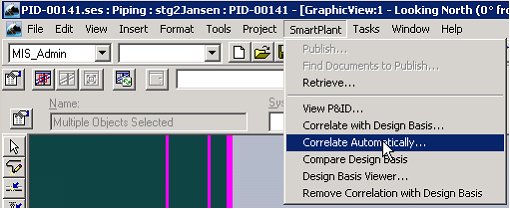
2. Under the SmartPlant menu in the top ribbon, select Correlate Automatically
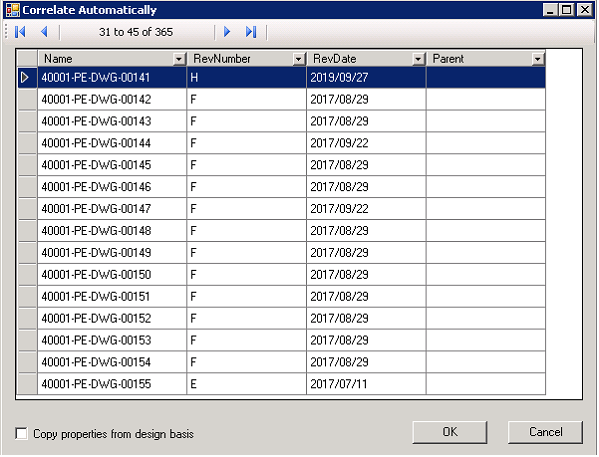
This will bring up the dialogue shown in Figure XX.
3. Select the P&ID 40001-PE-DWG-00141.
Note: For this exercise we will not check Copy Properties from Design Basis, since we want to use Compare Design Basis dialogue to see the differences first and then update.
4. Click OK to start the autocorrelation process.
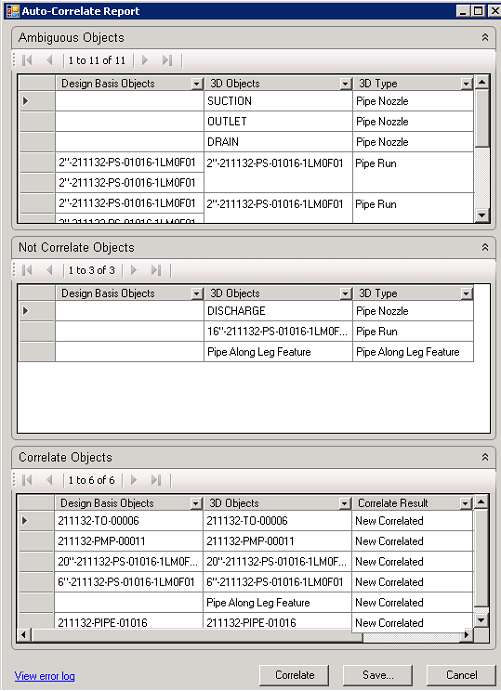
Once the process is complete, the Auto-Correlate Report dialogue will appear, listing both the successfully correlated and the failed items.
Note: For details on each section of this report dialogue refer to the S3D Integration User Guide.
In this example, the system was able to autocorrelate the two pieces of equipment, the pipeline system and the main 2-inch pipe run.
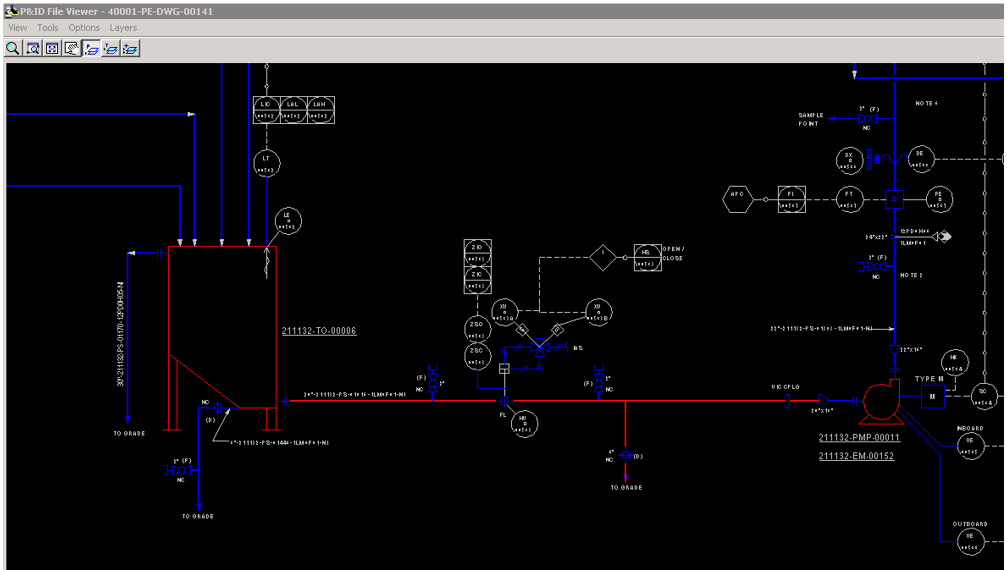
The following image shows the P&ID view of the correlated content in Red, which means the autocorrelation resulted in property mismatch because we have not copied the mismatch property data from design basis.